
Setting up a club
A club is created once and edited from then on. The form is the same either way, so this page walks the form and then shows where each part of it is read back.
Creating a club
Section titled “Creating a club”From Archery → Clubs, press Add Club.
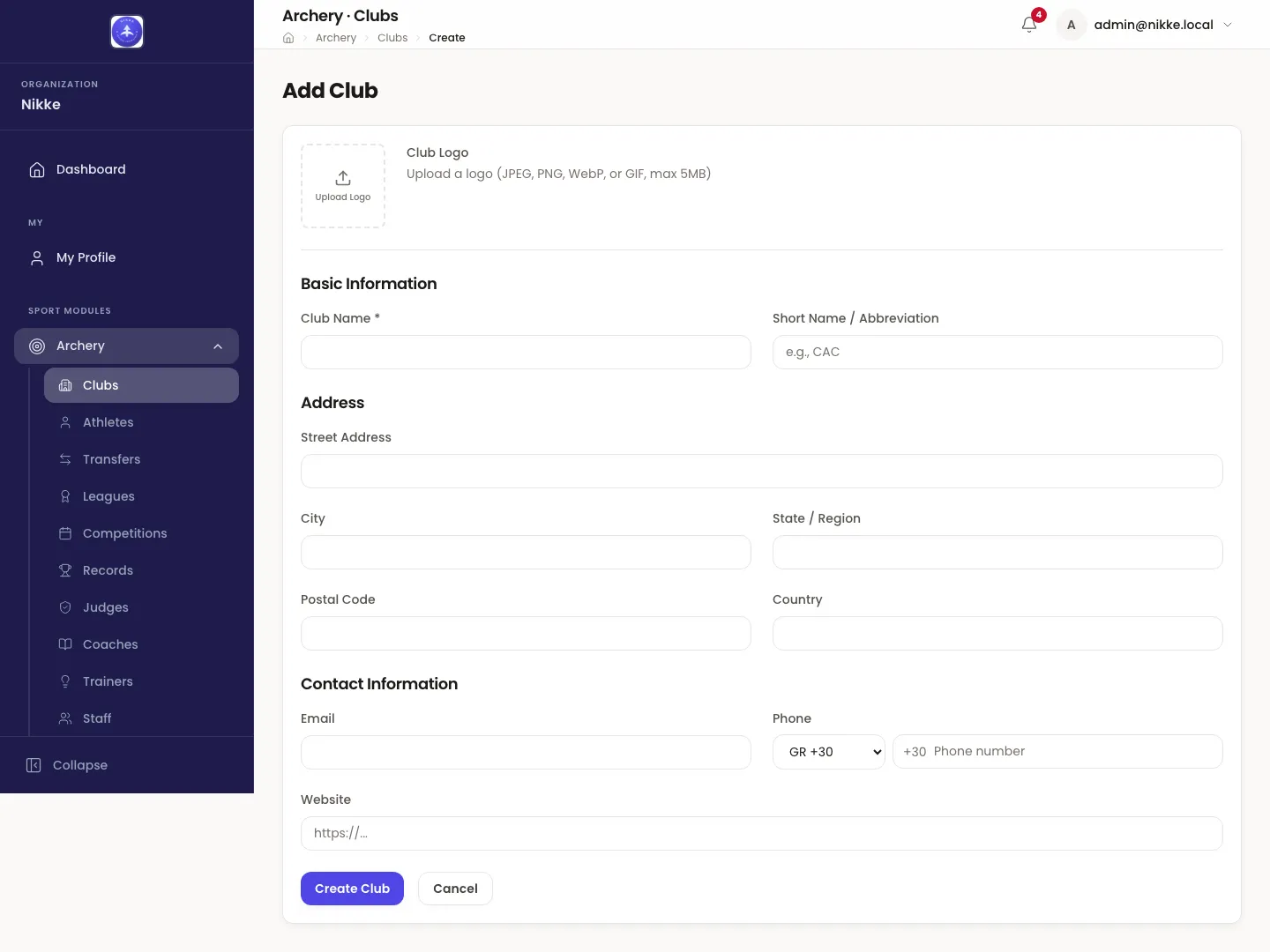
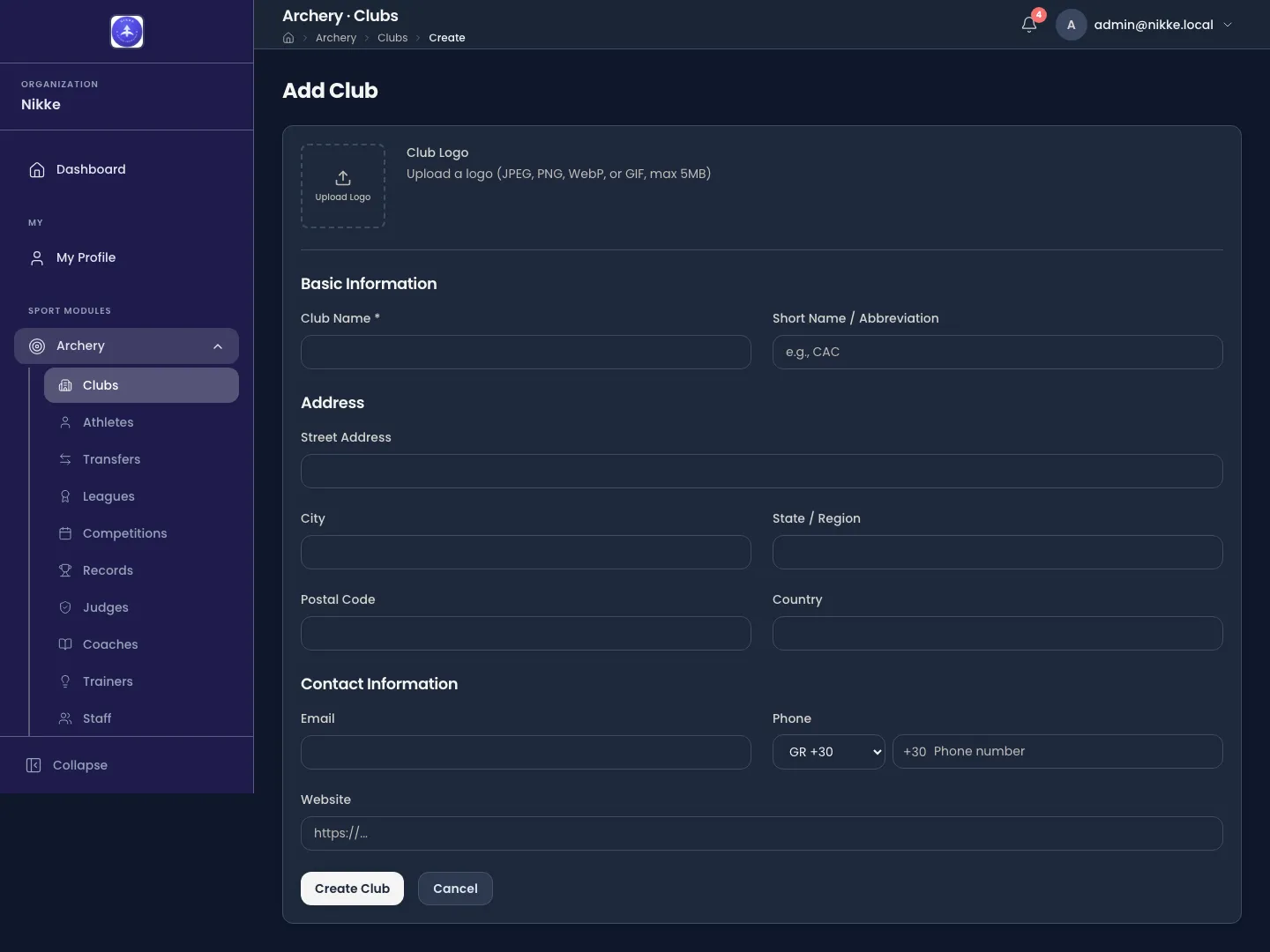
Club Logo takes a JPEG, PNG, WebP or GIF up to 5MB. It is the picture beside the club on the clubs list and at the top of the club’s own record; a club without one gets its initials instead, so skipping it costs nothing but recognisability. A logo you pick while creating the club is kept: it is uploaded as soon as the club is saved. To add or change it later, open the club, press Edit, and upload there.
Basic Information is the club’s identity.
- Club Name is the only required field on the form, and the name used everywhere.
- Short Name / Abbreviation is the code that appears under the name on the clubs list. Use the abbreviation the club is already known by rather than inventing one.
Address is a postal address in the ordinary sense — Street Address, City, State / Region, Postal Code and Country. The city and country from it are what the Location column on the clubs list shows, which is the practical reason to fill it in even where nothing is ever posted.
Contact Information holds an Email, a Phone and a Website. The phone is entered as a country code and a number, in the same two parts Velos uses everywhere.
Create Club saves it. On a club that already exists the same button reads Update Club, and Cancel leaves without saving.
Where the details are read back
Section titled “Where the details are read back”The Contact tab of a club is the form’s third section, read back.
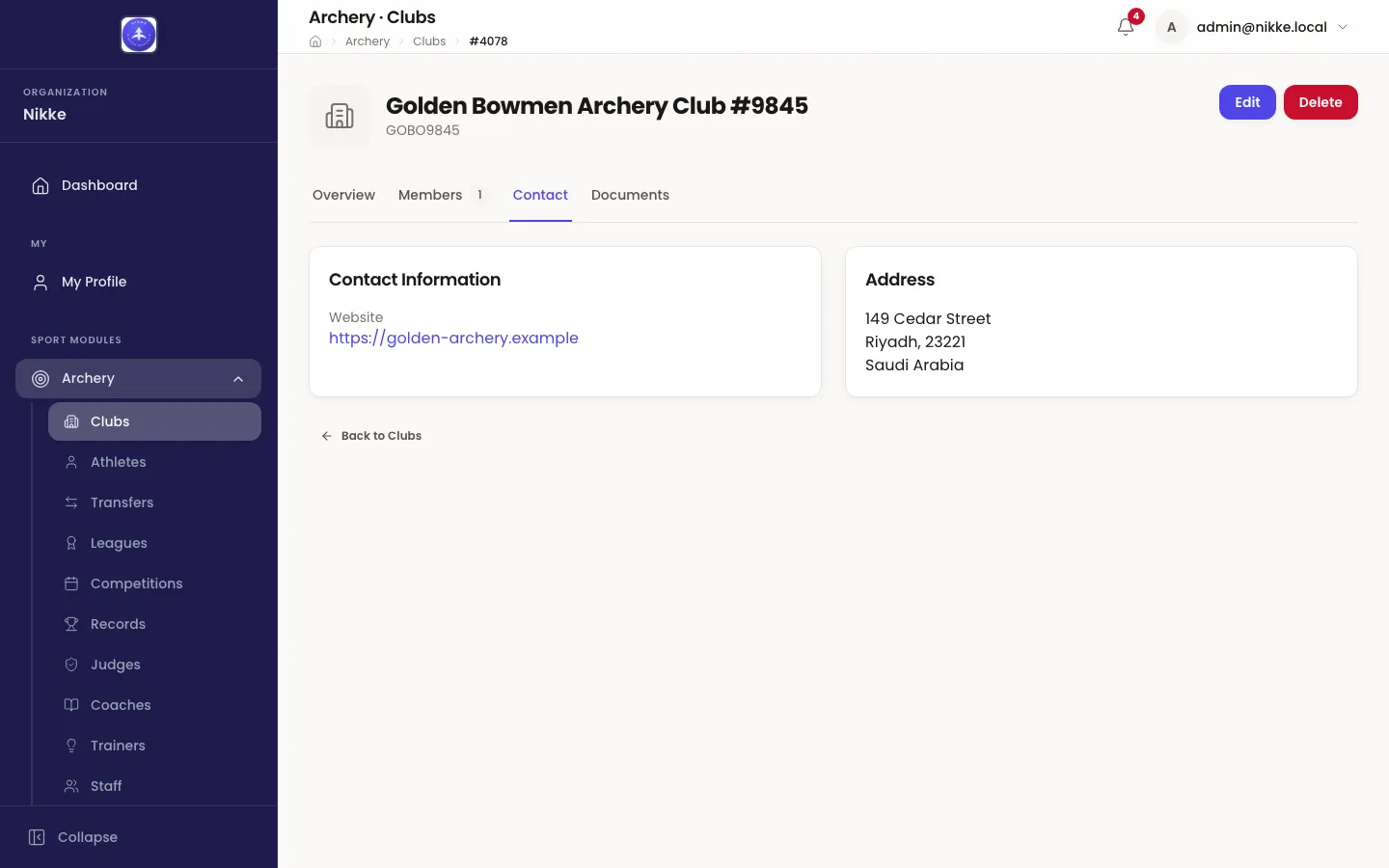
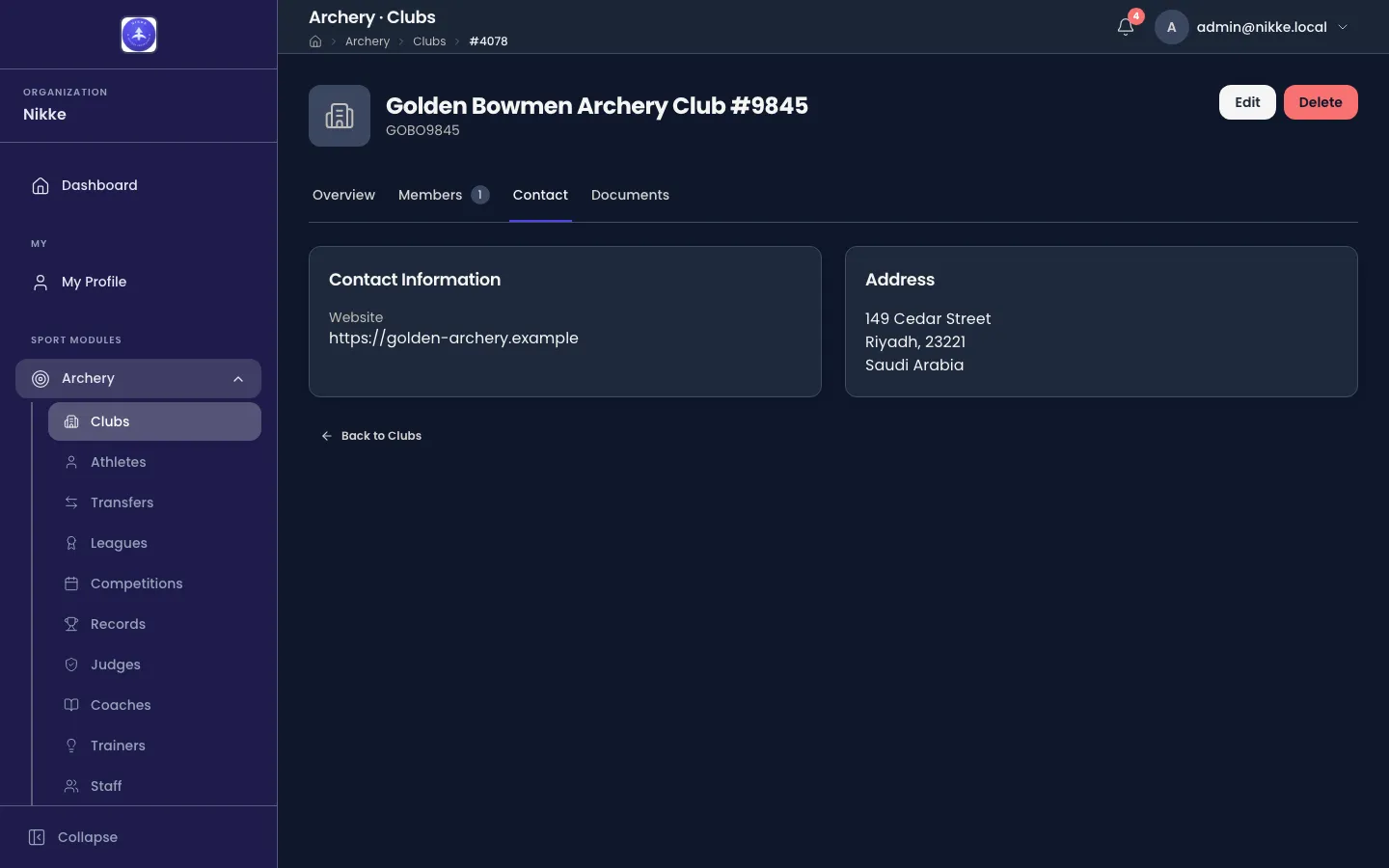
Whatever was left blank is simply absent from the card. Where nothing at all was entered, the tab says No contact information available or No address available rather than showing an empty card — which is how you tell a club that has no phone number from a club whose phone number failed to save.
Files kept against a club
Section titled “Files kept against a club”The Documents tab holds files that belong to the club itself — an affiliation certificate, an insurance document, a constitution. Give the file a name under Document Name (optional), choose it under File, and press Upload. A club with nothing uploaded yet says No documents yet. Each file carries a badge saying who filed it — Filed by the federation for your own uploads, Filed by the club for one made through the club portal. A club may delete only what it filed itself; your own administrators may delete any of them.
These are the club’s own papers. Documents that belong to one athlete are kept on that athlete instead, on the Documents tab of their record.
Editing and deleting
Section titled “Editing and deleting”Edit on a club’s header reopens this form with the club’s details in it. Delete removes the club.
Deleting is worth a pause. A club is pointed at by the athletes affiliated to it and by every entry those athletes have filed, so removing one is not the way to retire a club that has stopped shooting — leave it in place, and move its athletes on individually if they are still competing. Delete is for a club that should never have existed: a duplicate, or a typo saved twice.
With the club created, it needs people in it. Members and athletes covers the roster.
Updated for v1.63.0