
Finding your way around
Velos is the same shape on every page: a sidebar down the left that never changes, a bar across the top that tells you where you are, and the page itself in the middle. Learn those three and every other guide reads as directions.
The dashboard
Section titled “The dashboard”For staff, signing in lands you on the dashboard. It answers “what is the state of things” in one screen: headline counts for the sport you run, and what is coming up next with a countdown to it. An account with no staff pages lands on the first of its own pages instead — see Your own pages.
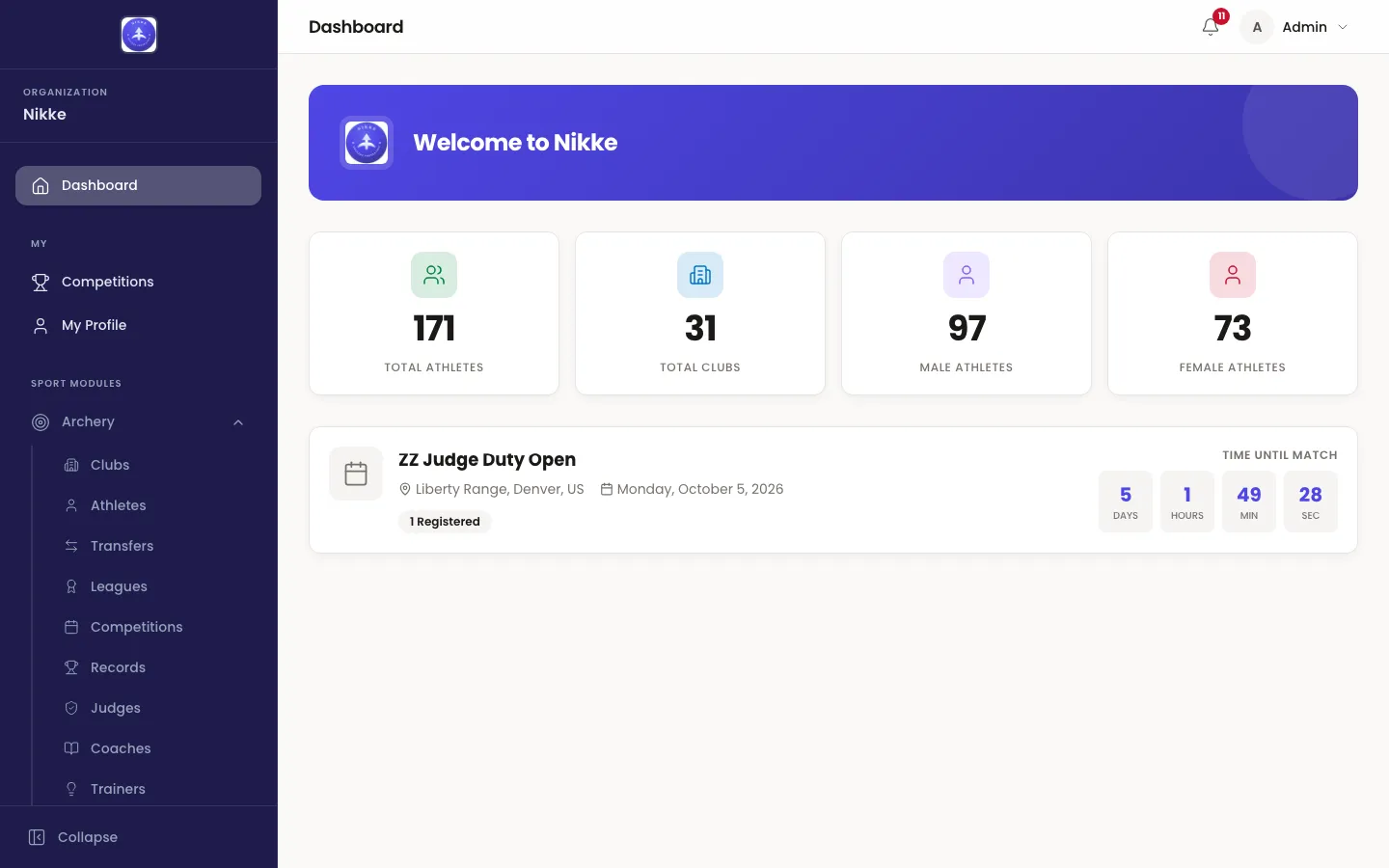
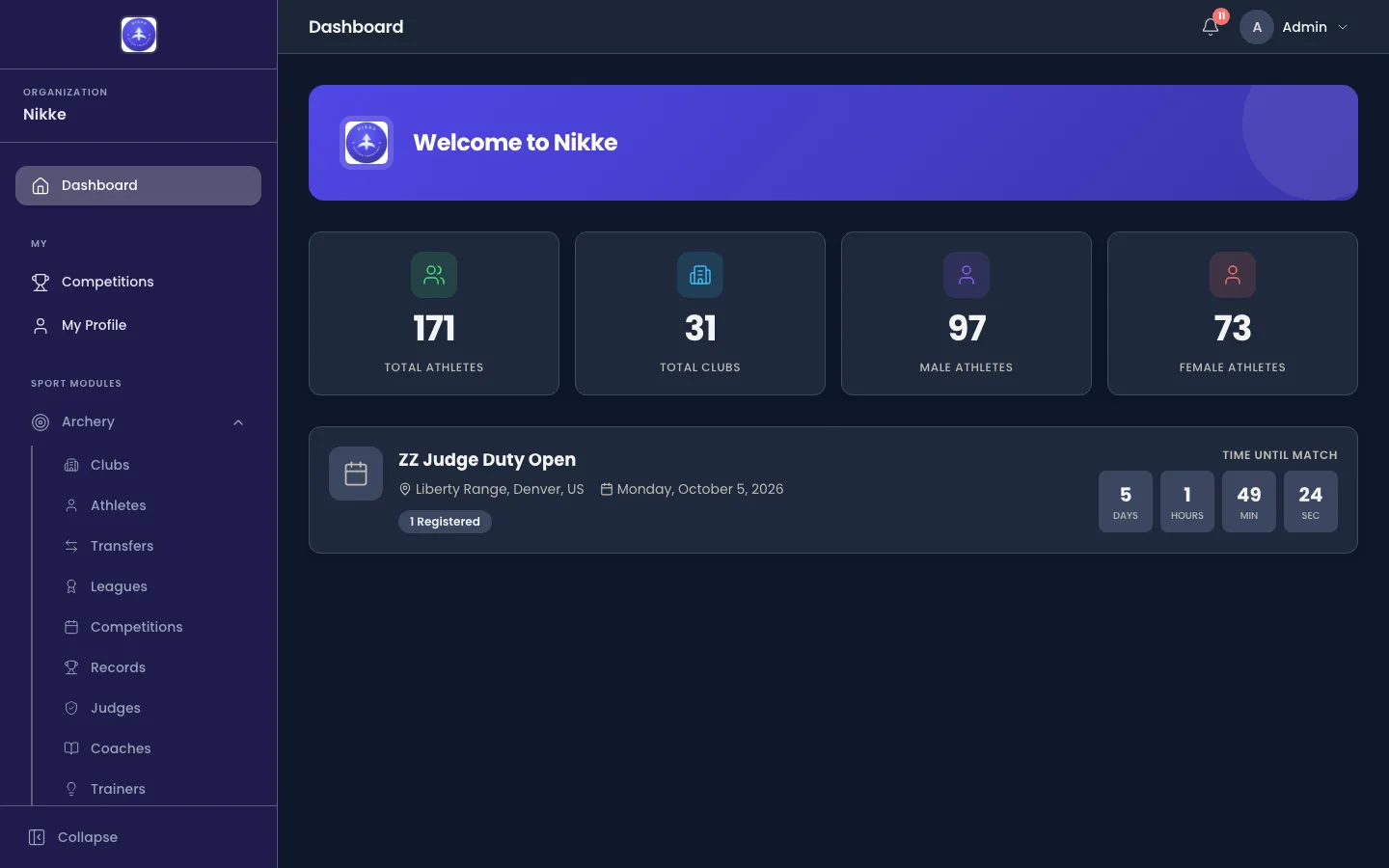
You can come back here at any time with Dashboard, the first item in the sidebar.
The first-run checklist
Section titled “The first-run checklist”On a brand-new setup the dashboard also carries a short checklist, Get your organization running, with three steps in the order they have to happen:
- Create a club — clubs are what athletes belong to.
- Register athletes — add athletes and link them to a club.
- Schedule a competition — set dates and categories, then open registrations.
Each step is ticked off automatically as soon as the thing exists, and the whole card disappears once all three are done — so if you have never seen it, someone finished the setup before you arrived. You can also dismiss it early, if you are working through the steps in a different order.
The steps link straight to the create pages, but only if your account may use them. A step you are not allowed to do still shows its progress; it just does not offer you a link into a page that would refuse you.
The sidebar
Section titled “The sidebar”The sidebar is the map. It is grouped, and the groups are always in the same order.
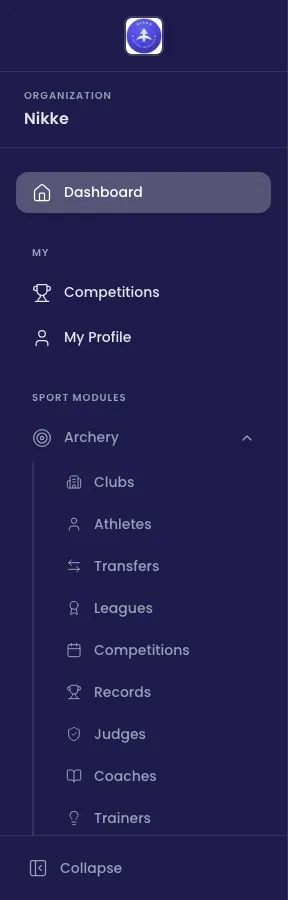
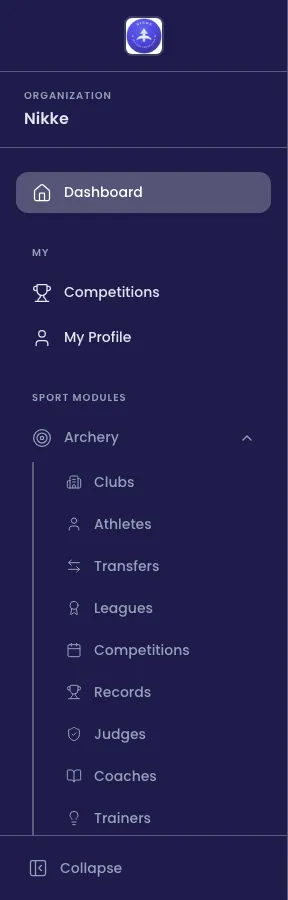
- Your federation, club or academy, named at the top under the Organization heading, with Dashboard beneath it.
- My — the pages about you rather than about the sport. Everyone has Competitions and My Profile here; a club coach or club official also has My Club, a judge My Judging, a seminar participant My Seminars, a registered athlete Athlete profile. What appears follows what you are — see Your own pages.
- Sport Modules — one entry per sport in use, each expanding to that sport’s pages: clubs, athletes, transfers, leagues, competitions, records, the officials, training and performance. A federation that only shoots archery has one entry here; another may have three. Some pages can be switched off where they are not wanted — the Trainers registry between Coaches and Staff, for instance, is absent for a federation that keeps no trainer register.
- Administration — the pages for running Velos itself: users, persons, announcements, plugins, audit logs, permission templates, billing and settings. Most people do not see this group at all.
Collapse, at the very bottom, narrows the sidebar to icons when you want the room.
You will only ever see the groups and links your account can reach, so your sidebar being shorter than the one above is normal. See Roles and access for why.
The top bar
Section titled “The top bar”The bar across the top carries three things: the name of the page you are on with a trail back to where you started, a bell with the number of unread notifications, and your account menu on the right — your photo, or your initial where no photo is set, with your first name beside it.
Your account menu
Section titled “Your account menu”Open the account menu — top right — for everything about you rather than about the sport.
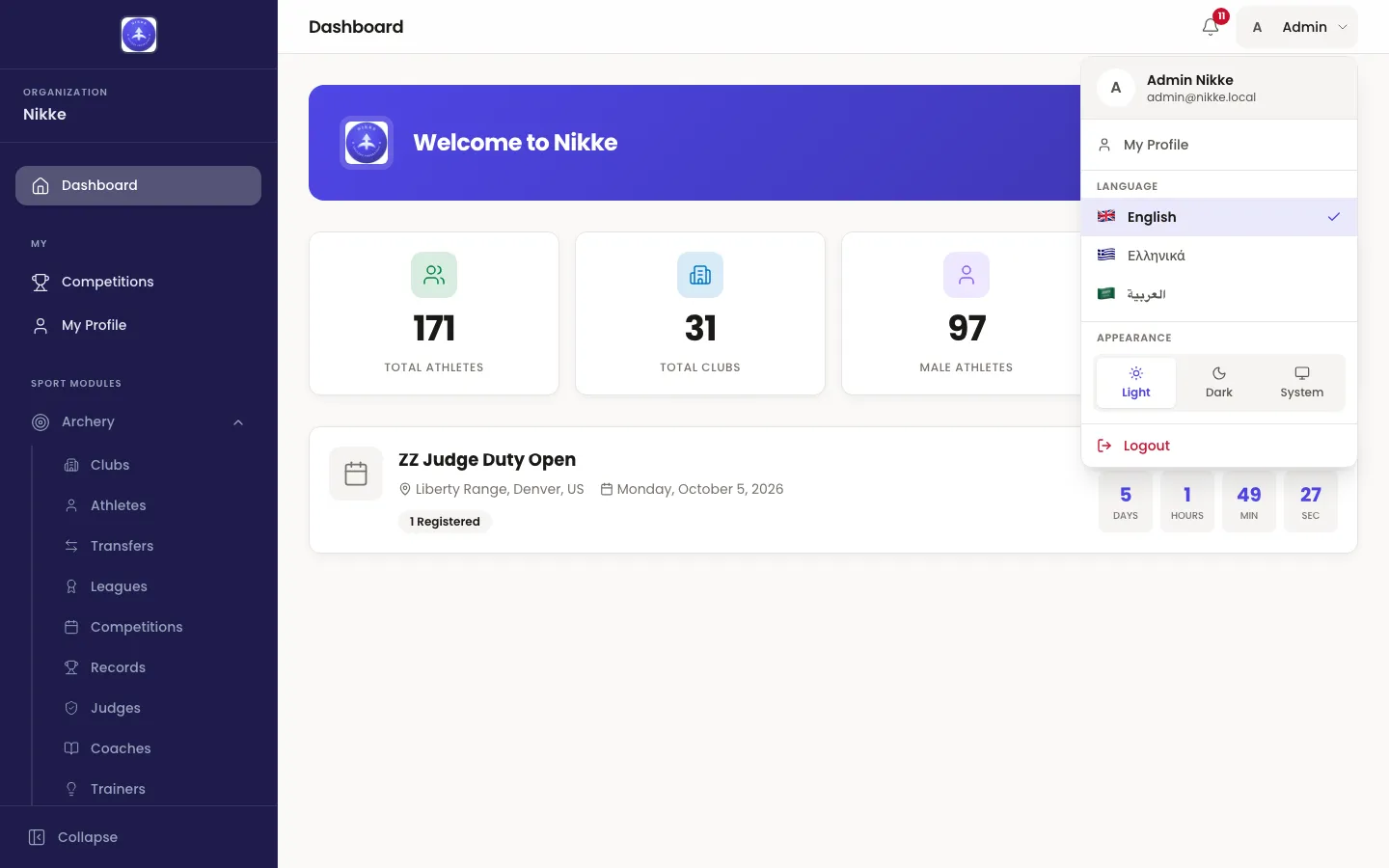
- Who you are. Your name and the address you signed in with.
- My Profile. Straight to your own record, described below. It is only offered when there is a person behind your account — an administrator’s seat with nobody on the roster has no profile to open.
- Language. English, Greek and Arabic. The change is immediate and remembered; Arabic also flips the whole app right-to-left.
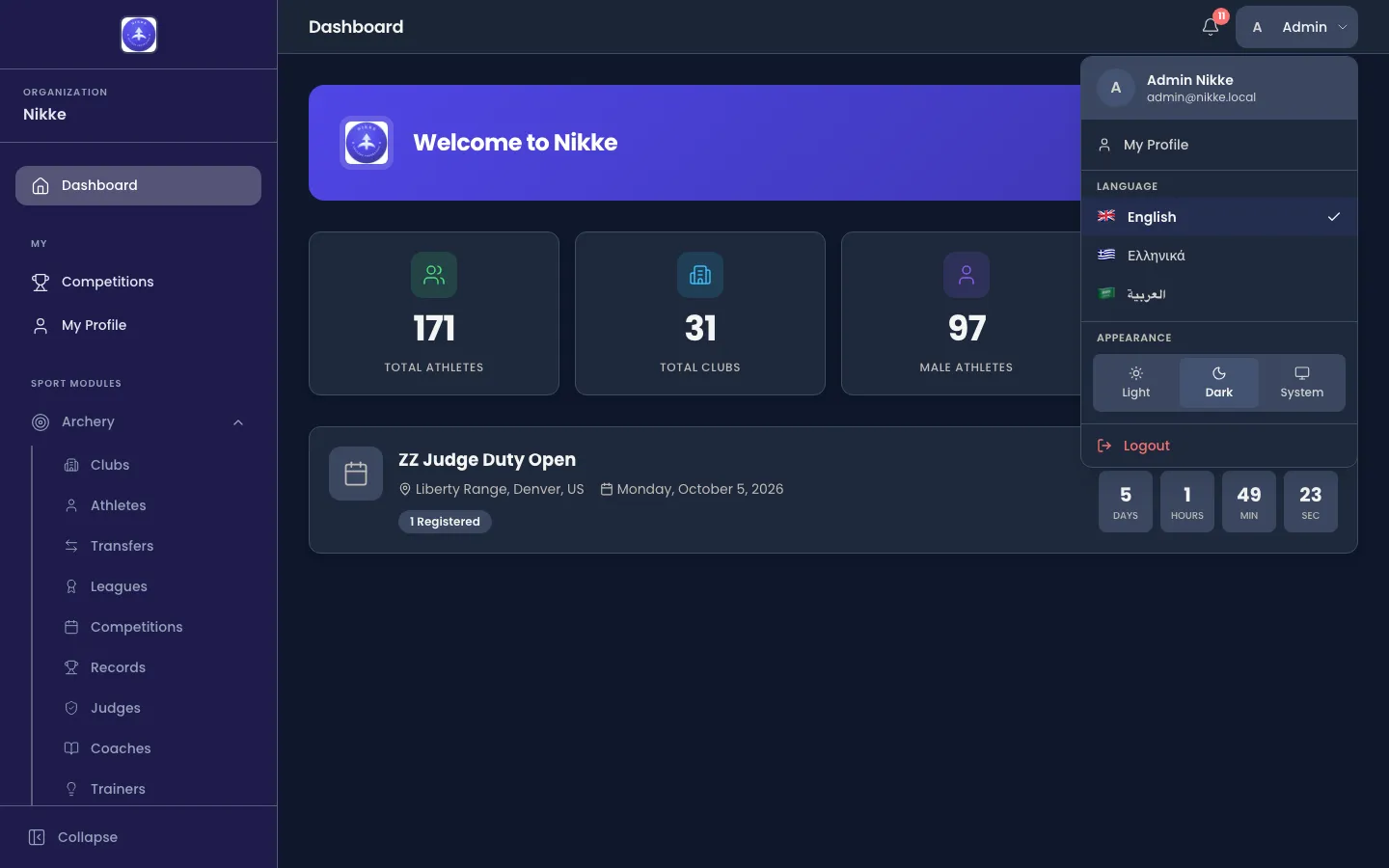
- Appearance. Light, Dark, or System to follow your computer’s own setting.
- Logout. Always use this on a shared computer.
Your profile
Section titled “Your profile”My Profile, in the My group, is your own record.
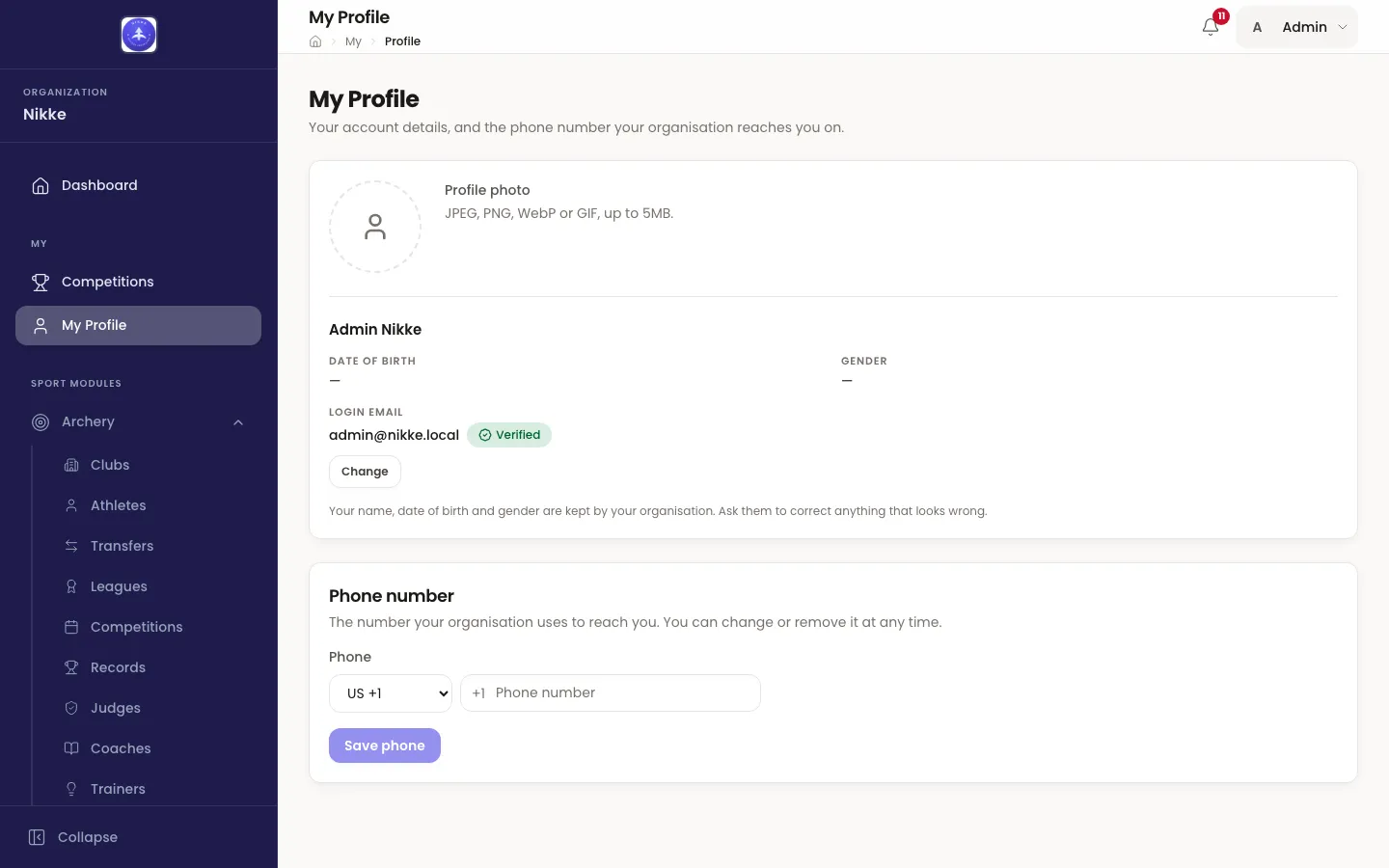
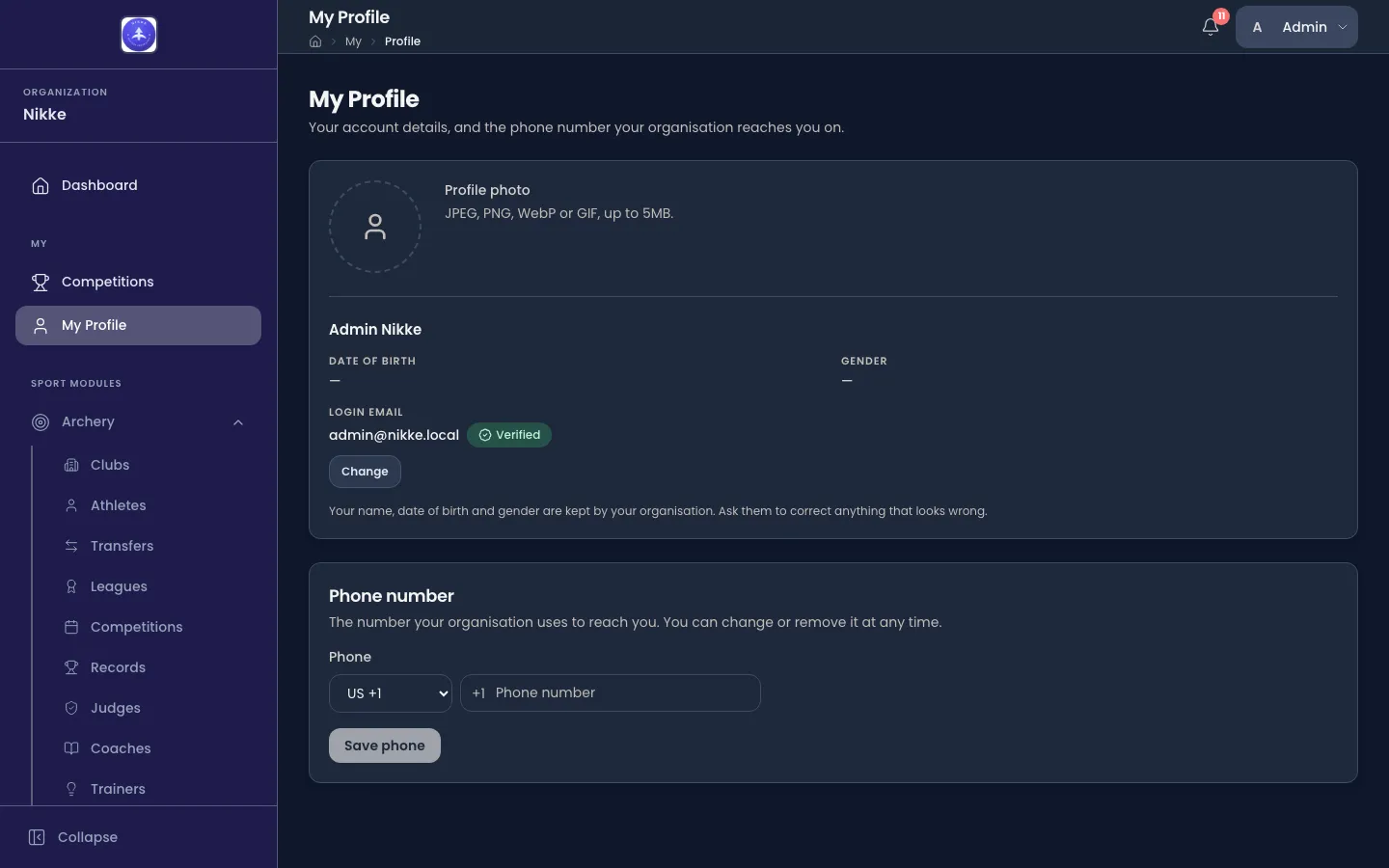
- Profile photo — yours to set. JPEG, PNG, WebP or GIF, up to 5 MB.
- Name, date of birth and gender — shown, but not editable here. These are kept by your federation, club or academy; ask them to correct anything wrong.
- Login email — the address you sign in with, and whether it has been verified. Change starts a change: Velos sends a code to the new address, and the change only takes effect once you enter it. Until then you keep signing in with the old one.
- Phone number — the number you can be reached on. Yours to set, change or remove at any time.
Everyone whose account is linked to a person has this page; it is not something your federation, club or academy switches on.
Updated for v1.63.0