
Members and athletes
An athlete is a person’s competitor standing in one sport — their licence, their category and their competition history. A club is who they shoot for. The two are joined by the athlete’s own record, which is where every change of affiliation is actually made.
A club’s roster
Section titled “A club’s roster”The Members tab of a club is its roster.
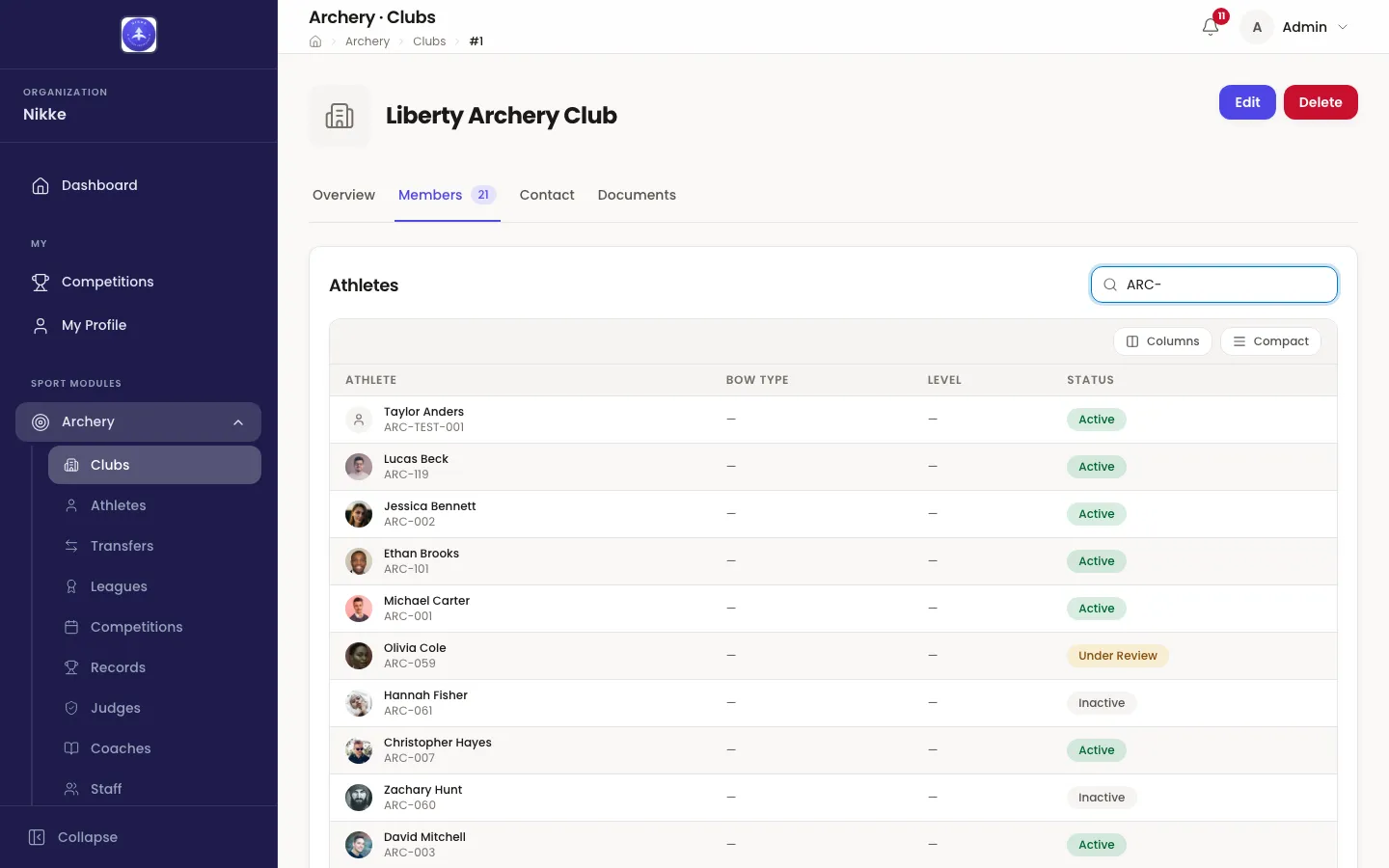
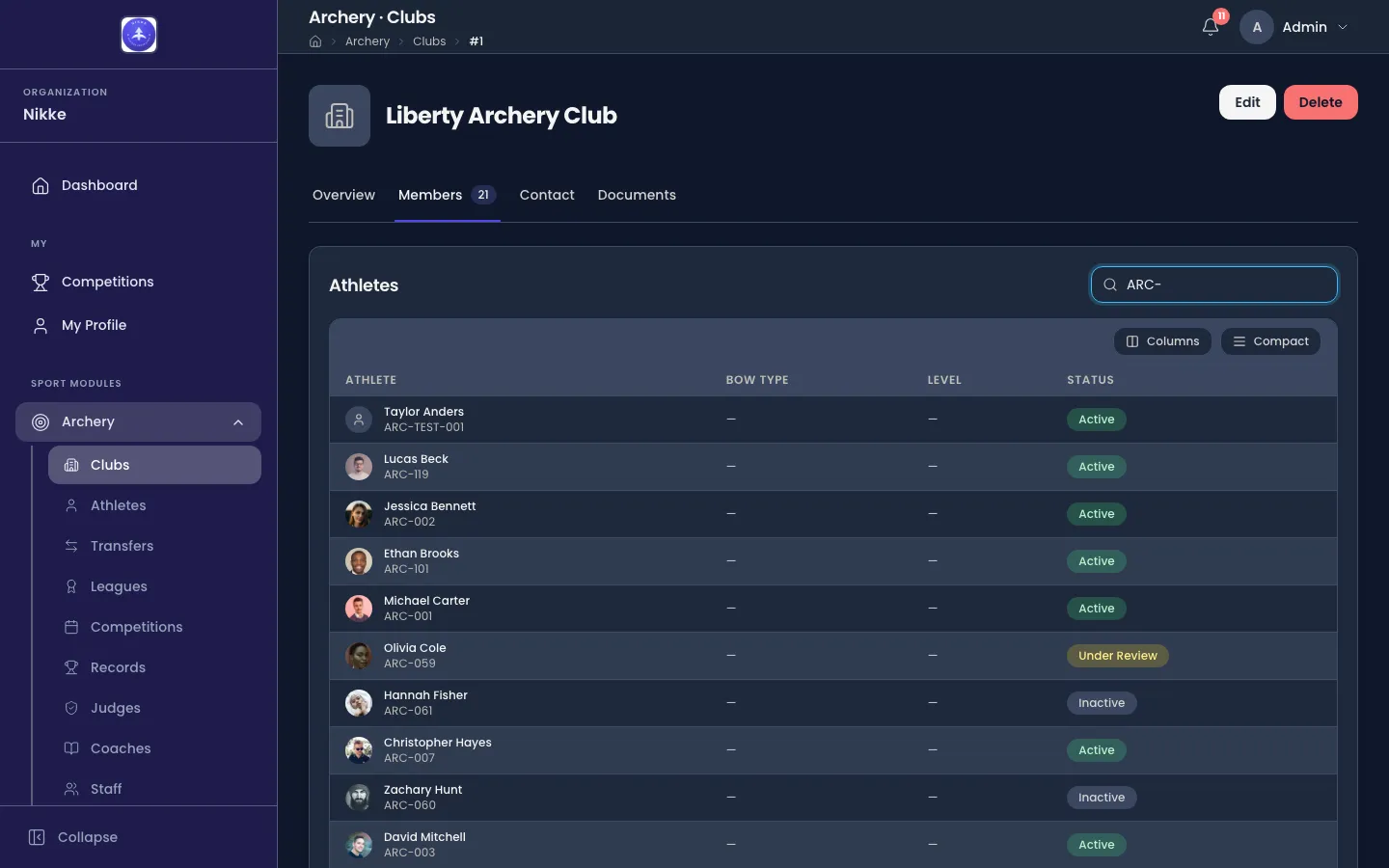
Each row is one athlete: their photograph and licence, the bow type and level held against them, and their status. Search athletes… matches a name or a licence, which is the quick way into a roster too long to scan.
Status is what the roster is really for:
- Active — shooting, and enterable into competitions.
- Pending Approval — added but not yet accepted by your federation, club or academy.
- Under Review — flagged and being looked at.
- Inactive — on the roster but not currently shooting.
A dash under Bow Type or Level means nothing has been recorded there yet, not that the athlete has none. The bows an athlete is actually graded on are shown on the athlete list and on their own record.
The roster is read-only: nobody joins or leaves a club from this tab. Affiliation is a field on the athlete, so a change of club is made on the athlete’s record — which is the next section.
The athlete list
Section titled “The athlete list”Archery → Athletes is every athlete your federation, club or academy holds, whatever club they belong to.
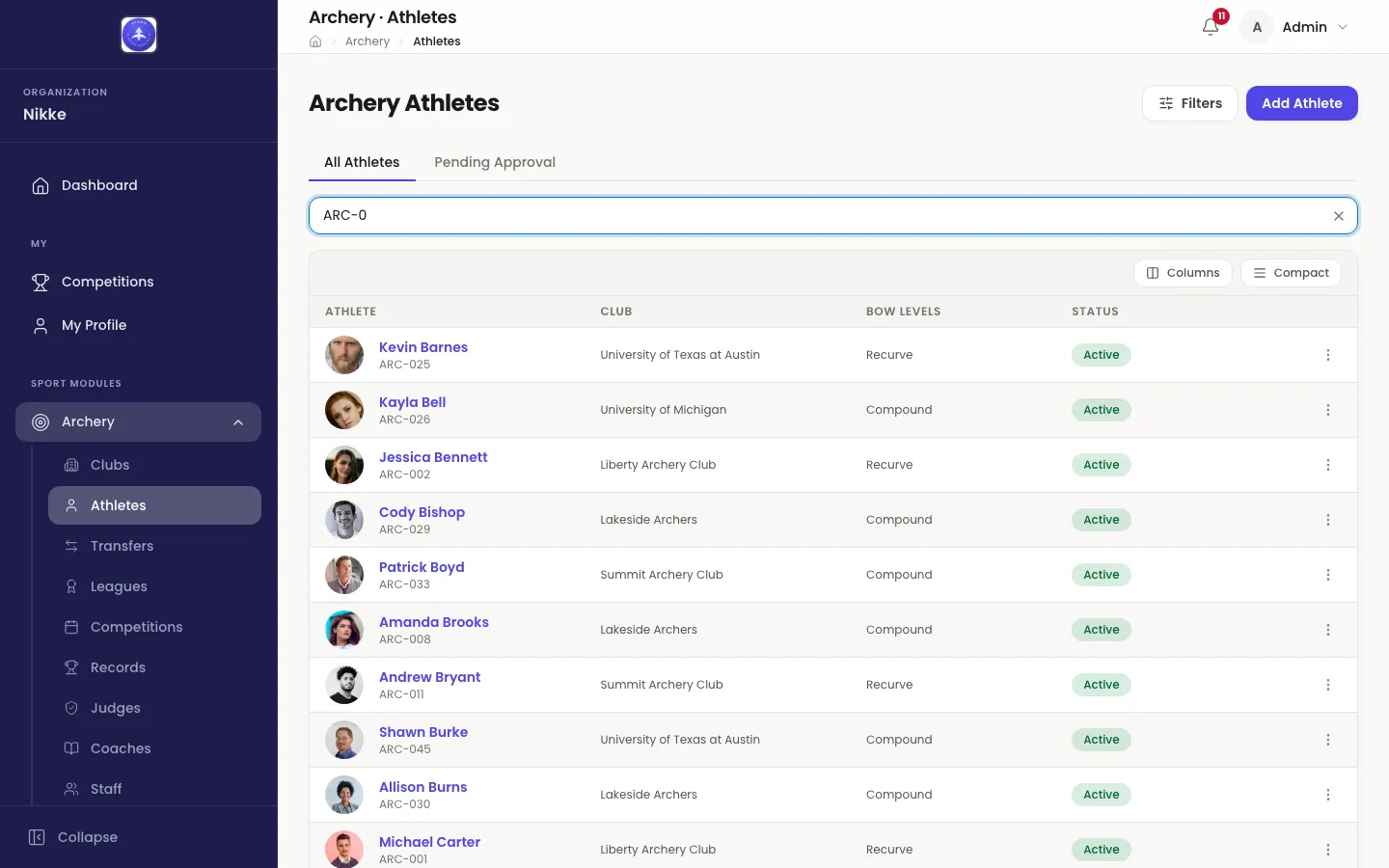
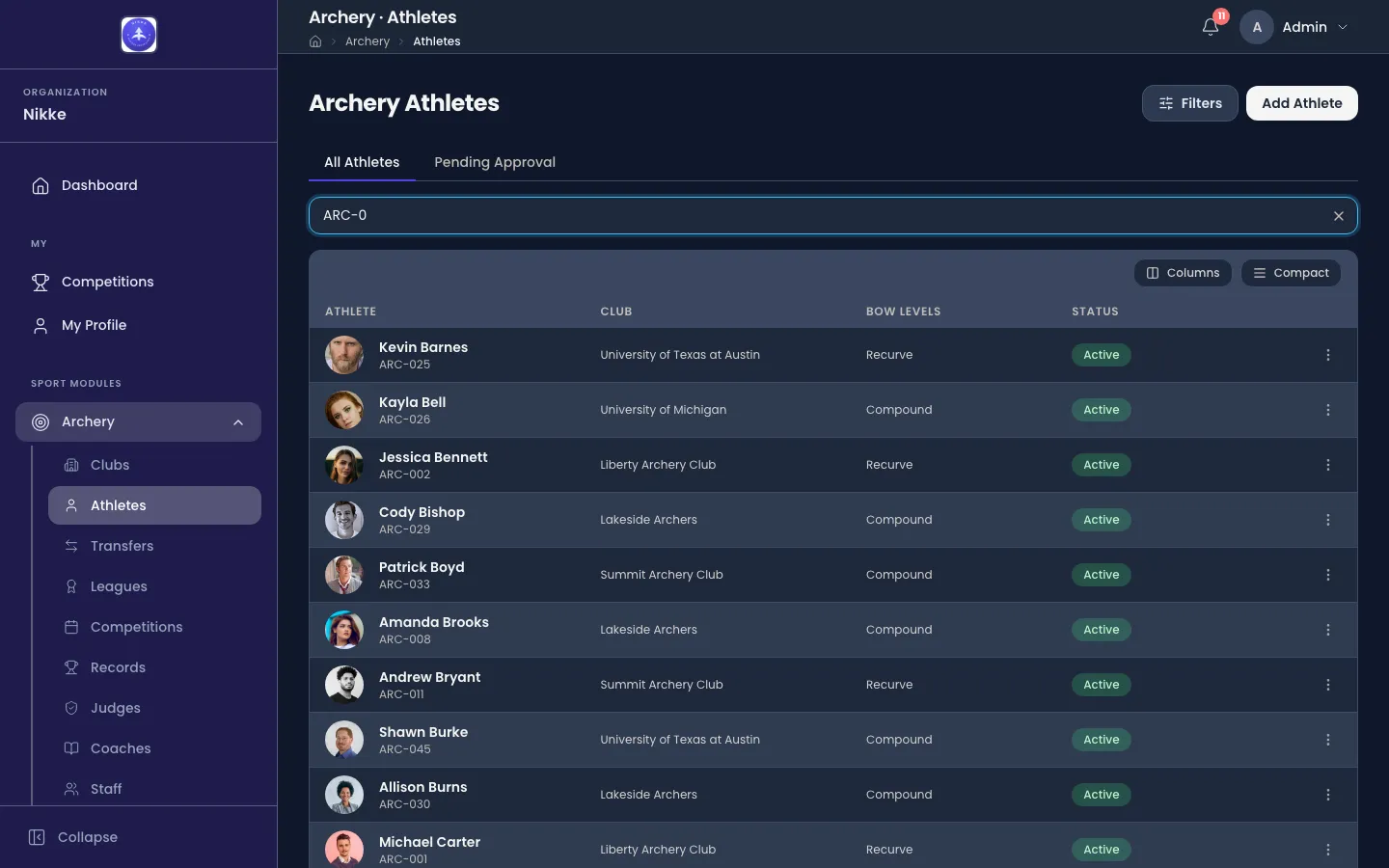
- The search matches a name or a licence number, so a licence read off a scorecard finds its athlete directly.
- Filters opens the rest of it — club, status, bow type and level, hand, age range, nationality and more. The club, league, nationality and citizenship filters are search boxes that open their list as you click them; the date ranges are calendar pickers, and Apply waits while a typed date is one Velos cannot read. Whatever you apply stays visible as a row of removable pills above the table, so a list is never mysteriously short.
- All Athletes and Pending Approval are two views of the same list. The second is the queue: athletes added but not yet accepted, gathered so nobody is left waiting in a list of hundreds.
- Bow Levels is every bow that athlete is graded on, one badge each. An athlete may hold more than one.
Add Athlete creates one. The ⋮ menu at the end of a row holds View, Edit and Delete, and on an athlete still waiting to be accepted it also holds Approve and Reject — so the pending queue can be worked through without opening anybody. Reject opens Turn down this registration, where a Reason (optional) tells the club what to put right before they resubmit — they read it on their club portal — and Turn down confirms. Which of those you are offered depends on what your account may do.
One athlete’s record
Section titled “One athlete’s record”Opening an athlete gives you everything Velos holds about them in one place.
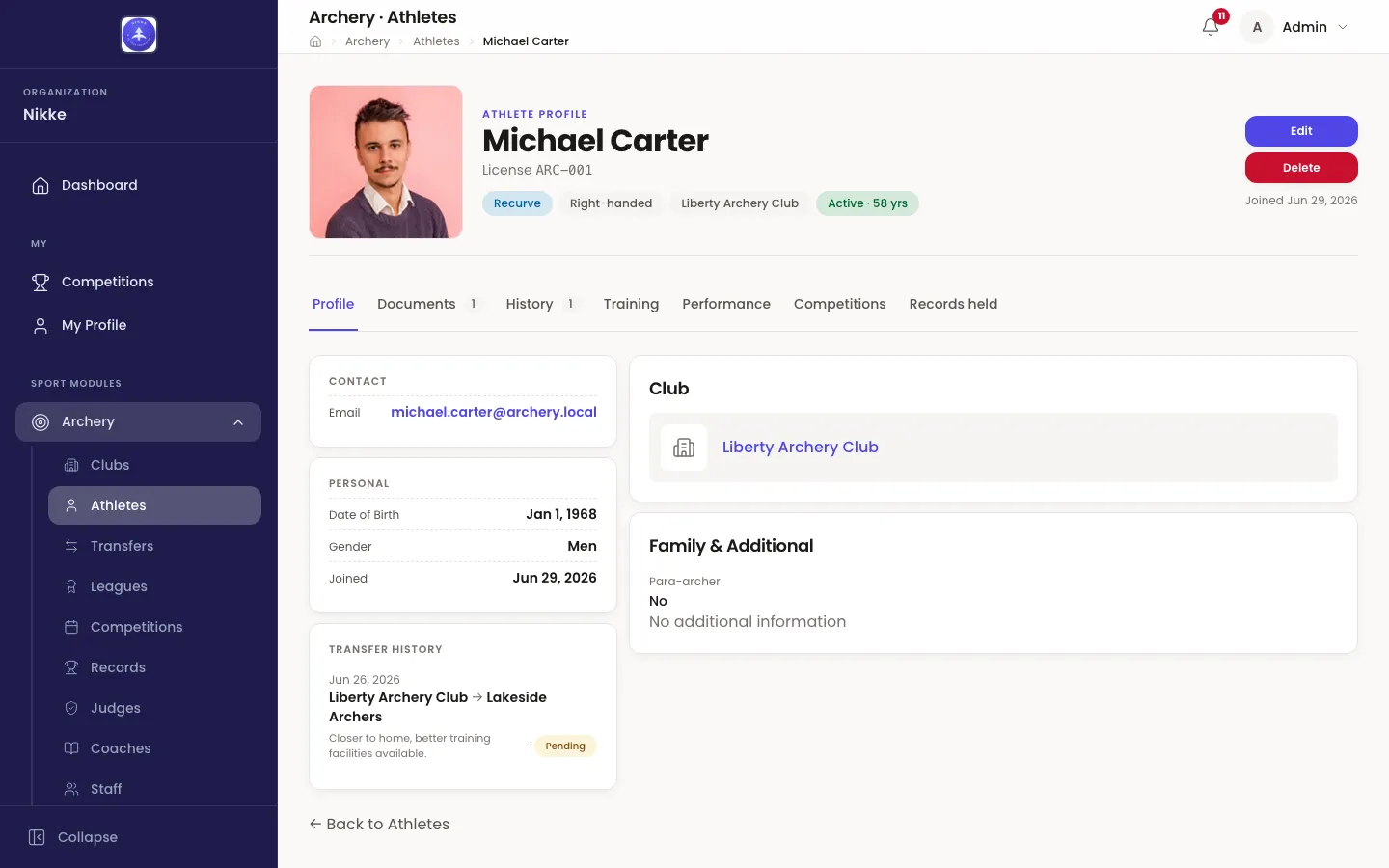
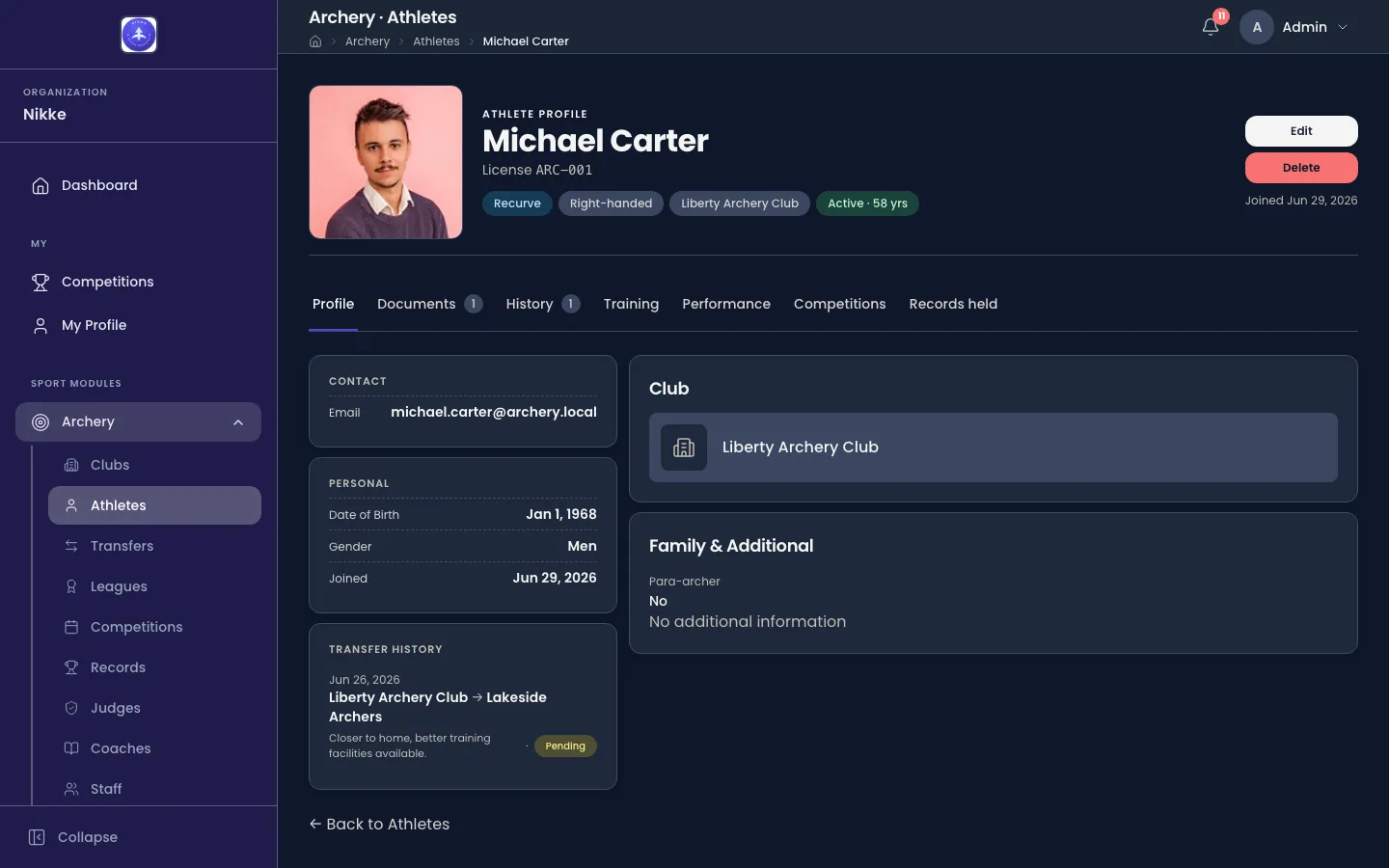
The header is the athlete’s identity — photograph, licence, bow, handedness, the club they represent, and their status with their age. Changing any of it, the club included, is Edit.
The tabs divide the rest:
- Profile — who they are: contact details, personal details, the transfers this athlete has been through, their club, and their family and additional details.
- Documents — files kept against this athlete. The number beside the tab is how many. Each file carries a badge saying who filed it — Filed by the federation, Filed by the club through its portal, or Filed by the archer — so a portal upload is never mistaken for your own.
- History — every transfer this athlete has been through in full, with the count beside the tab. The Transfer History card on Profile is the most recent few of the same thing.
- Training — every training session recorded for them, covered in Training.
- Performance — the analysis built on their results.
- Competitions — their competition record. Four totals across the top — Competitions, Podiums, Best score and Records held — then their Season form, their Recent competitions, the Team & mixed rounds they shot as part of a club side, and their Medals, each marked with the kind of round it came from. Podiums counts a team or mixed team placing exactly as it counts an individual one.
- Records held — the records currently standing in this athlete’s name.
Delete removes the athlete outright, and carries the same warning as deleting a club: an athlete who has stopped shooting should be set inactive, not deleted, so the entries and results already filed under them keep pointing at somebody.
Moving an athlete between clubs
Section titled “Moving an athlete between clubs”Two ways, and which one you should use depends on whether the move needs a decision.
Edit the athlete and change their club. Immediate, and right for a correction — an athlete filed under the wrong club on the day they were added.
A transfer request, under Archery → Transfers. A transfer is the move as a piece of business rather than a typo: it is requested, it can require the club being left, the club being joined and your federation, club or academy to agree, it can carry supporting documents, and it can be confined to a transfer window. The result is a dated entry in the athlete’s Transfer History, which an edited club field would never leave.
A club’s own coaches and officials get their own read-only view of the same roster. The club portal covers it.
Updated for v1.63.0