
Seminars
A seminar is how your federation, club or academy trains people — a timed schedule, a roster of participants, instructors, materials, optional exams, and numbered certificates for those who complete it. It trains people toward a standing; it never grants one. Its participants are persons in your directory, with or without a login of their own.
This page is the administrator’s side. What a participant sees of the same seminar — the schedule, the materials, and the credentials they are asked to file — is described under Your own pages.
The seminars list
Section titled “The seminars list”Archery → Seminars lists every seminar in two groups: Upcoming & running, and Past — a seminar moves to the second once its end date is behind you.
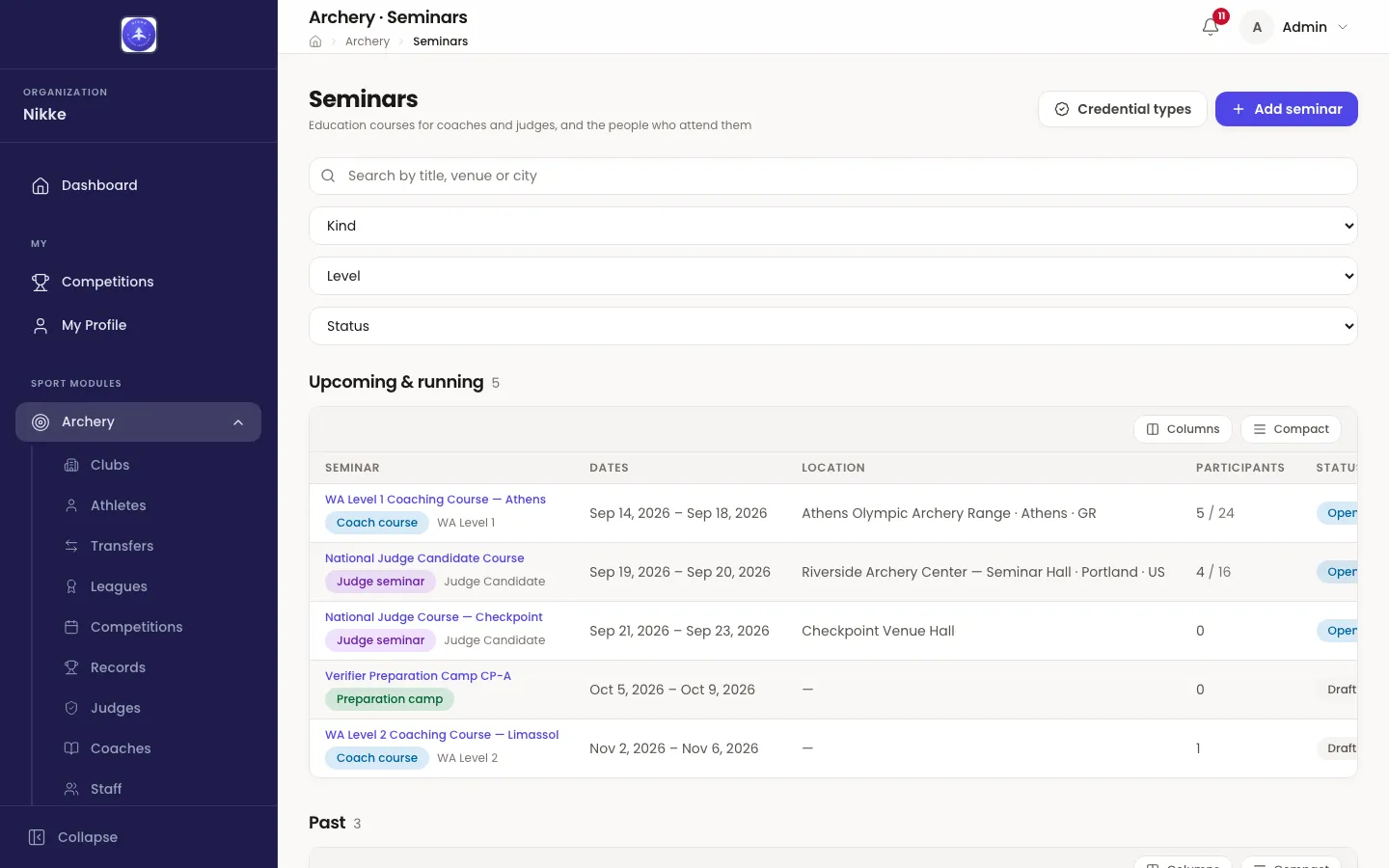
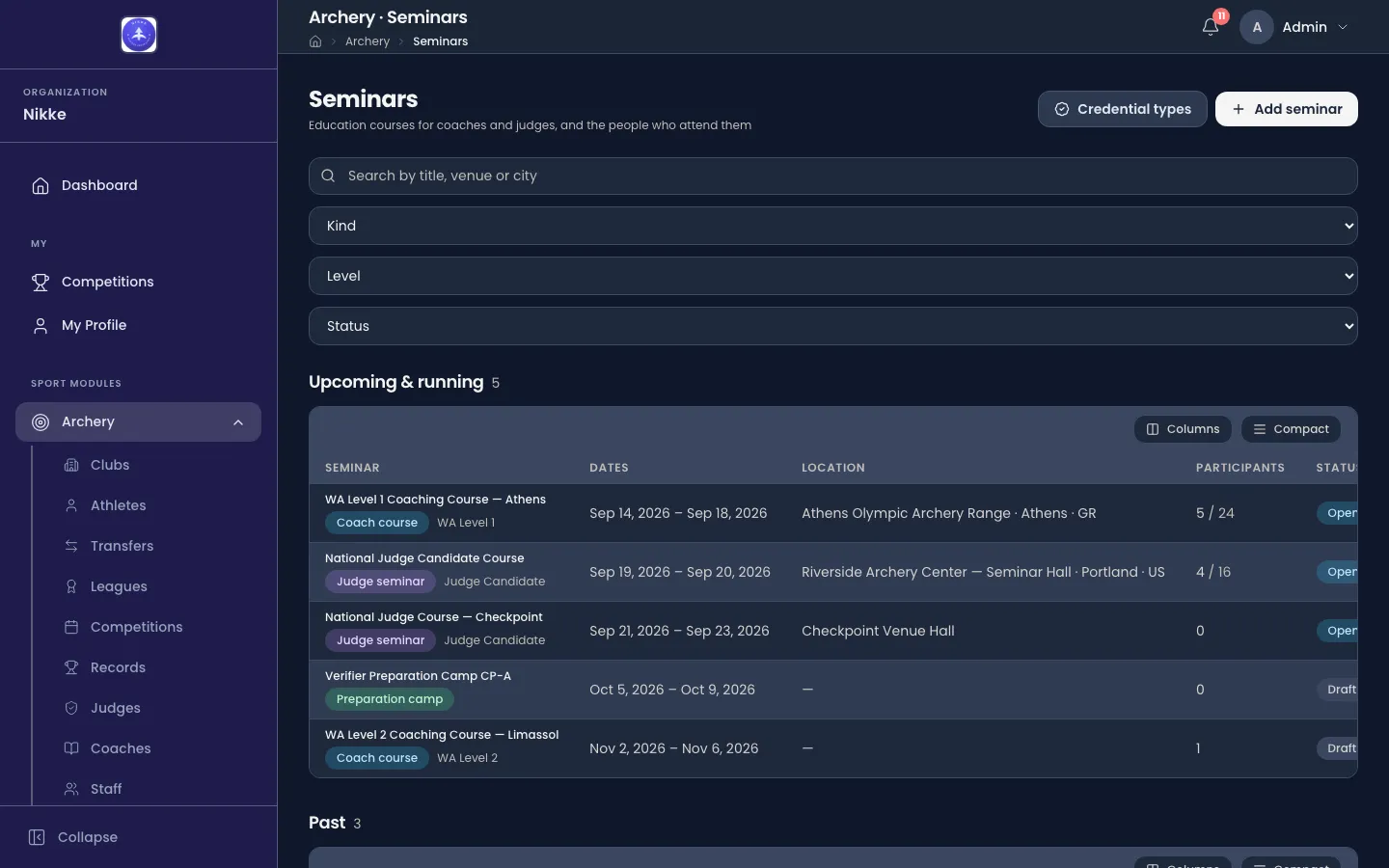
Each row shows the seminar’s title, a Coach course, Judge seminar or Preparation camp chip with its level, its Dates, its Location as venue, city and country, its Participants as a count against the capacity, and its Status. Narrow the list with the search box — it matches the title, the venue and the city — or with the Kind, Level and Status dropdowns; choosing a kind limits the levels offered to that kind’s ladder.
The More menu (⋯) on a row offers View, Edit and Delete. Deleting a seminar takes its roster with it, as the confirmation says, but the people themselves stay in your directory.
Add seminar opens the form below. Credential types opens the catalog described further down.
Creating a seminar
Section titled “Creating a seminar”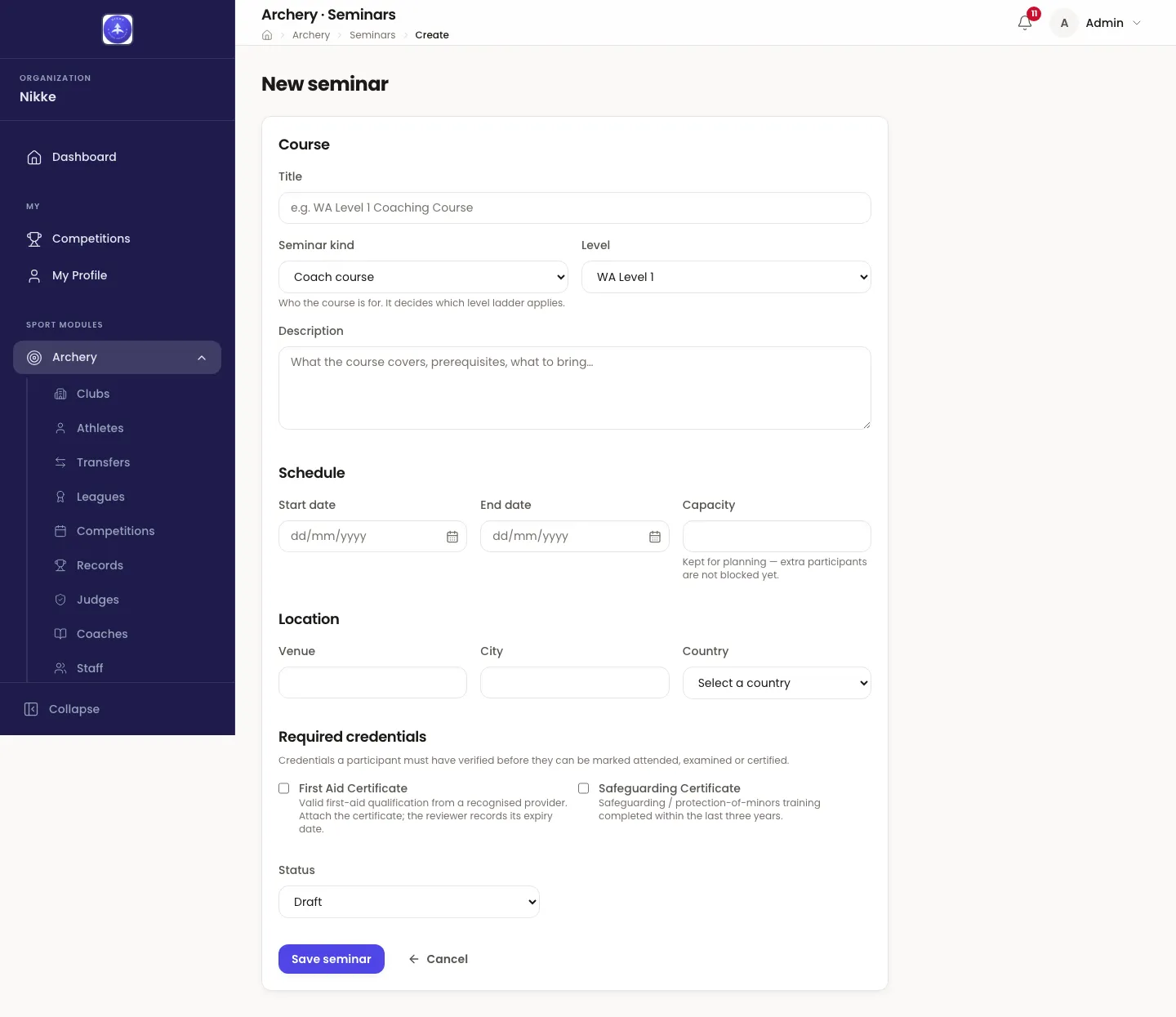
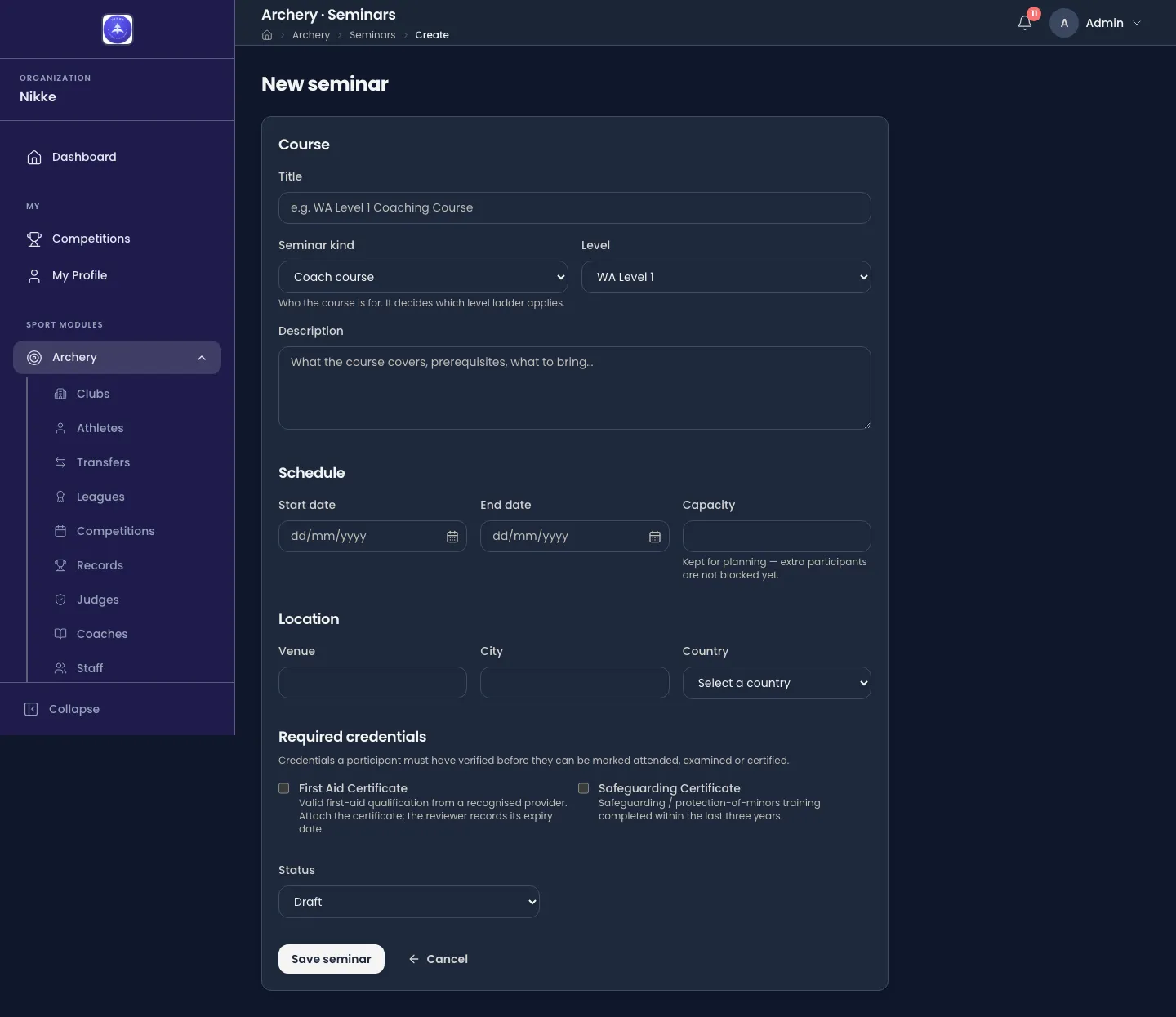
Course is what the seminar is. Title is required. Seminar kind is what kind of course it is, and decides how it is labelled and which ladder, if any, is offered under Level. A Coach course and a Judge seminar train toward a standing and carry that standing’s ladder: World Archery levels 1 to 3 for coaches; judge candidate, national, continental and international for judges. A syllabus outside either ladder takes the level Other and a Syllabus name of its own. A Preparation camp readies people for something ahead — a national team camp before a championship — and has no ladder at all, only an optional Syllabus name. Kind is a label and a ladder, nothing more: roster, exams, certificates and sign-up behave the same for every kind. Description is free text — what is covered, what to bring.
Schedule takes a Start date and an End date, both required, and a Capacity.
Dates are typed as dd/mm/yyyy or picked from the calendar behind the field; a date Velos
cannot read says Enter a date as dd/mm/yyyy and holds Save seminar until it is fixed.
The capacity is for planning: as the hint says, extra participants are not blocked by it.
Location is the Venue, City and Country, which become the list’s Location column.
Required credentials appears once your catalog has at least one credential type. Tick each type a participant must hold a verified credential of — a first-aid certificate, a safeguarding clearance. What it means for the roster is under Credentials on the roster.
Status is where the seminar sits in its life: Draft, Open, Completed or Cancelled. Setting it to Open is what puts it on your public sign-up page; there is no separate registration window. The same four states can be moved between later, from the Overview tab.
Save seminar creates it. Edit on a seminar’s header reopens the same form.
The credential-type catalog
Section titled “The credential-type catalog”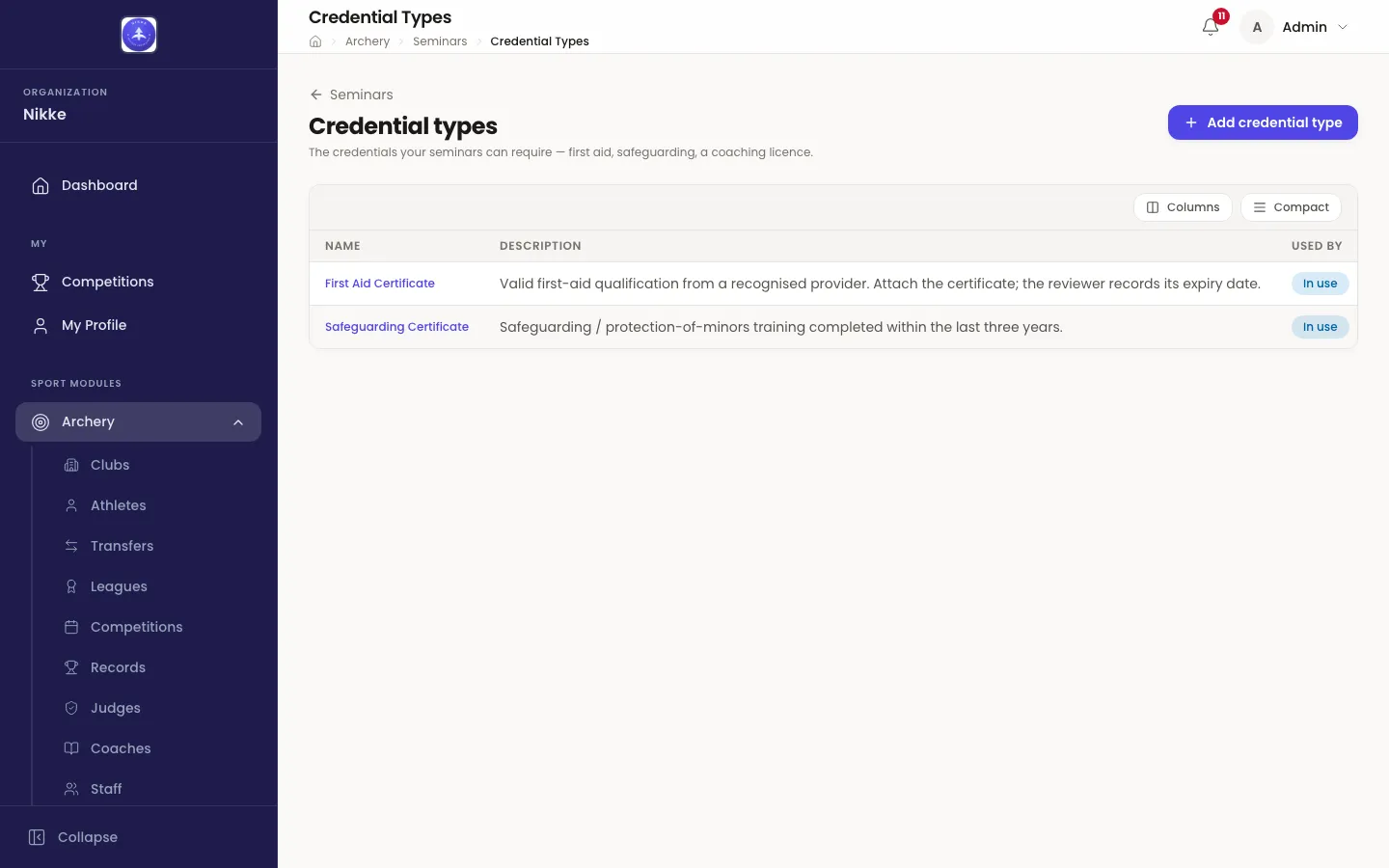
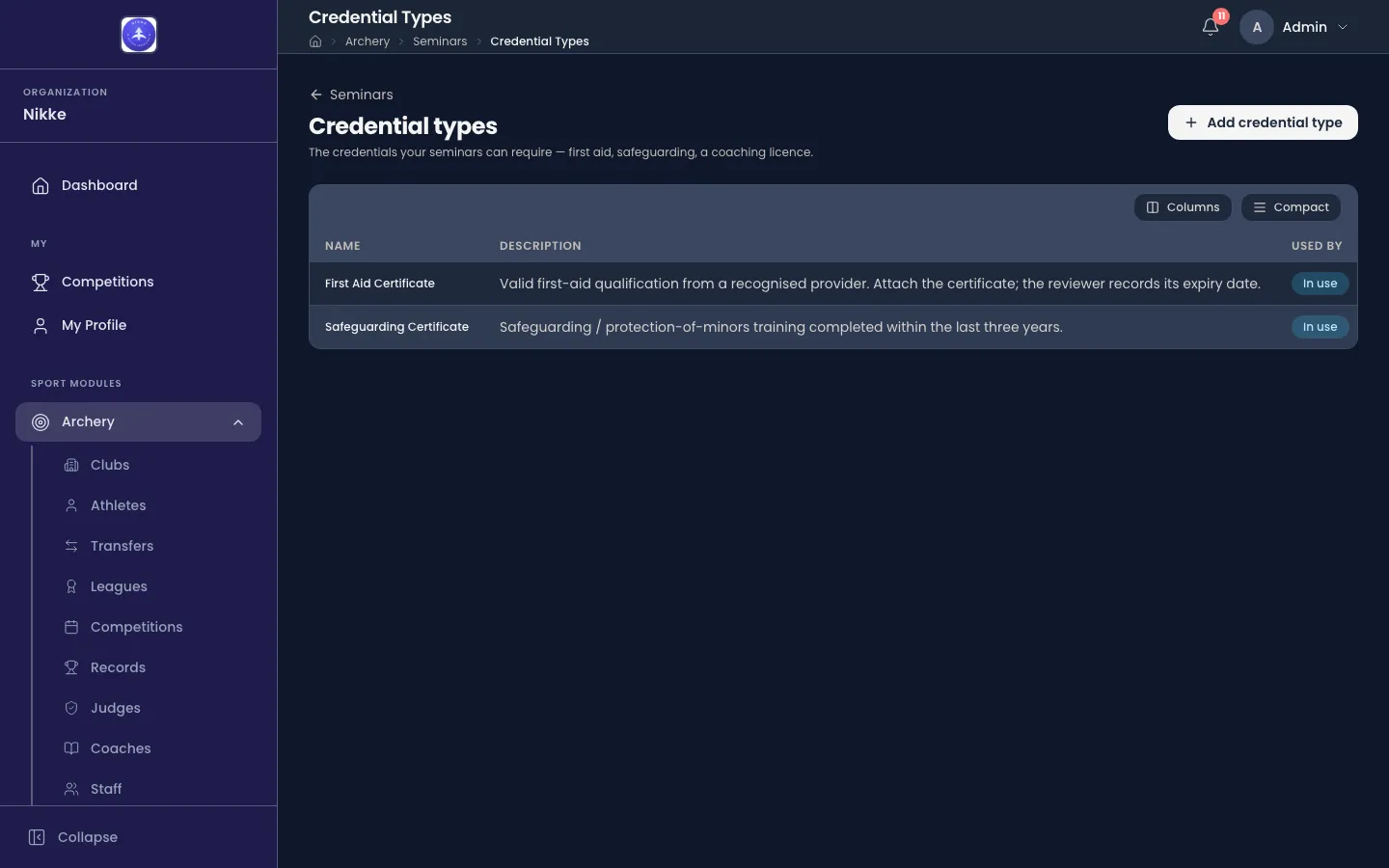
A credential type is one kind of credential your federation, club or academy recognises. Credential types — the button beside Add seminar — is the catalog. Add credential type asks for a Name and a Description; the description is what a participant reads when told what to file, so say what counts and who may issue it. Used by shows In use once any seminar requires the type, and Not used yet until then.
A type that is in use cannot be deleted: remove it from every seminar that requires it, and delete the credentials filed against it, first.
Inside a seminar
Section titled “Inside a seminar”Opening a seminar shows its title, kind chip, level, status and dates, with Edit and Delete, over seven tabs: Overview, Schedule, Participants, Exams, Materials, Certificates and Updates. The tabs that hold a count show it; the Certificates tab also leads to a page of its own, the certificate layout editor.
Overview
Section titled “Overview”Details reads back the level, dates, location, capacity, participant count and status, and the Description follows. Move this seminar on is the status control — one button per state, the current one highlighted.
Instructors names who teaches. An instructor comes From your directory — a person already in Velos — or is a Guest entered by name. Their names appear on the public sign-up page and in the participants’ app. Add instructor, Edit role and Remove instructor maintain the list.
Schedule
Section titled “Schedule”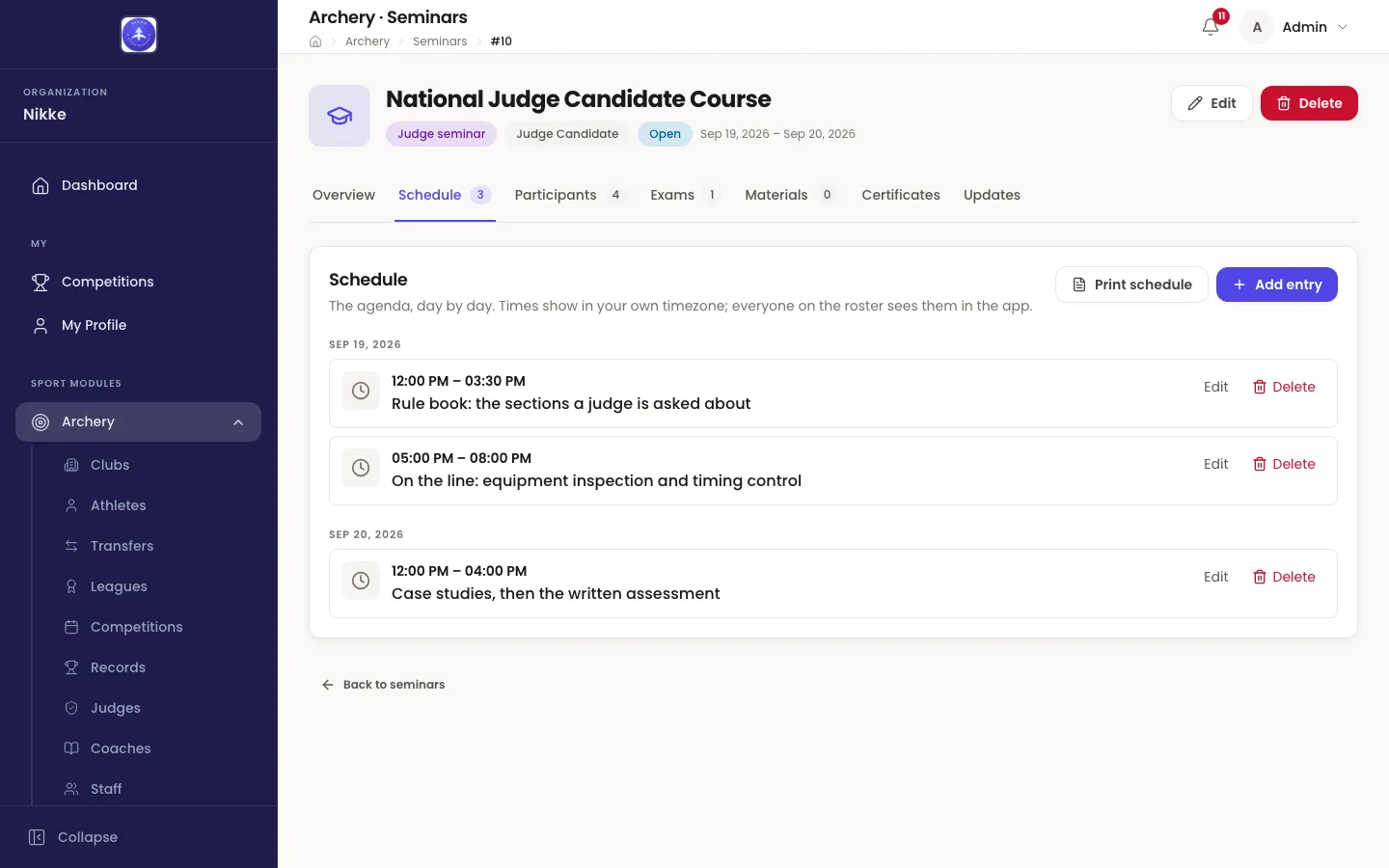
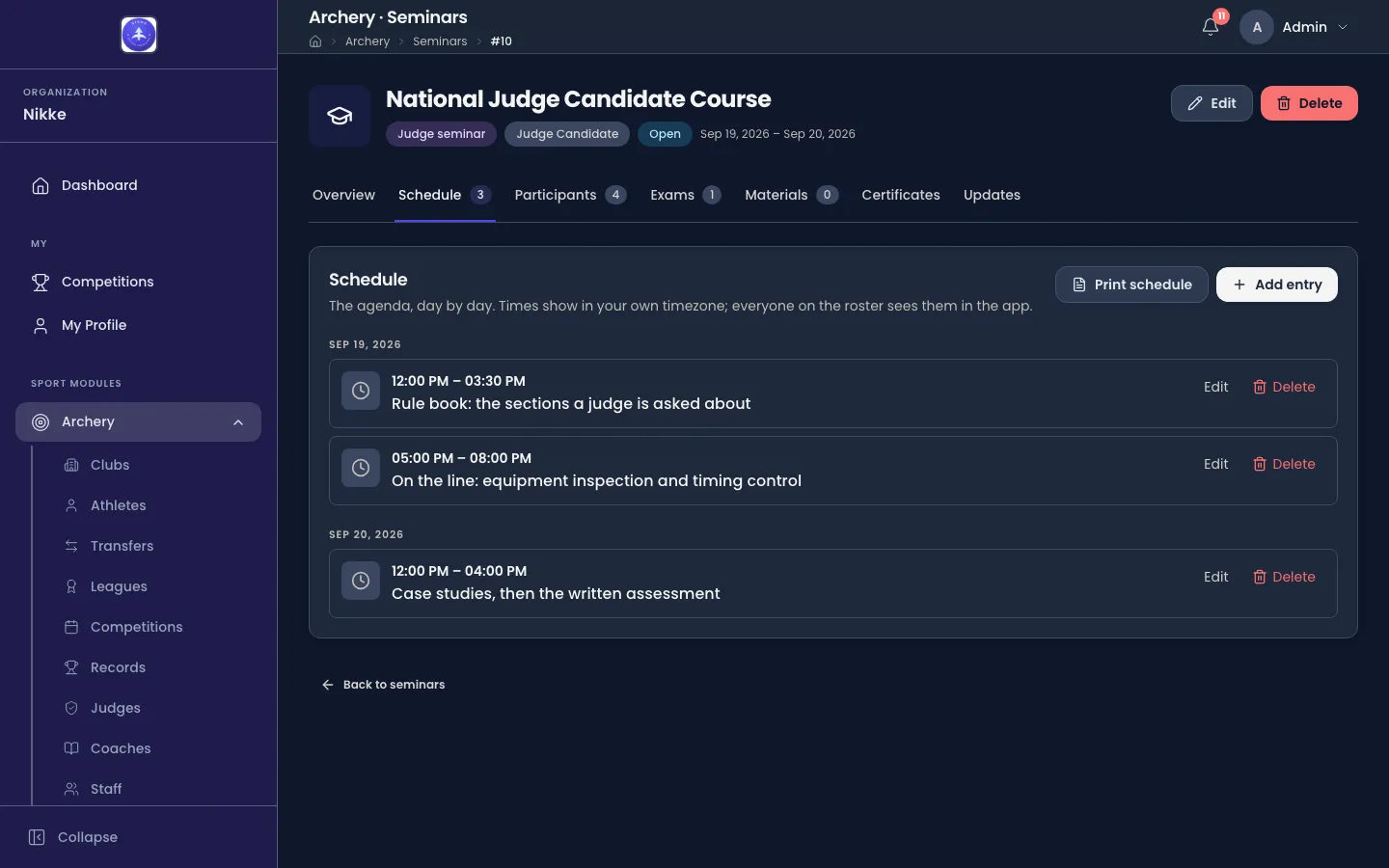
Every entry on the seminar’s schedule, in time order and grouped by day. Add entry takes What happens, Starts, an optional Ends, Where and Details. Details runs to 40 lines at most: a count under the box keeps the tally, and a longer one is refused with Keep the description to 40 lines. Everyone on the roster sees the same entries in the app.
Times show in your own timezone, and so do the days: an entry sits under the day it falls on where you are, so somebody in another timezone can find the same entry on a different day.
Print schedule turns the whole schedule into a handout to give out or pin up — every entry, grouped by day in your timezone, under the same heading as the seminar report, with the seminar’s instructors named once. It leaves no space for notes or attendance; it is for reading, not for filling in. An entry that ends on a later day than it starts prints its end with the days added, such as 01:30 (+1). The button waits until the schedule has an entry, since an empty schedule has nothing to print, and the handout opens in a new tab like the report does.
Participants
Section titled “Participants”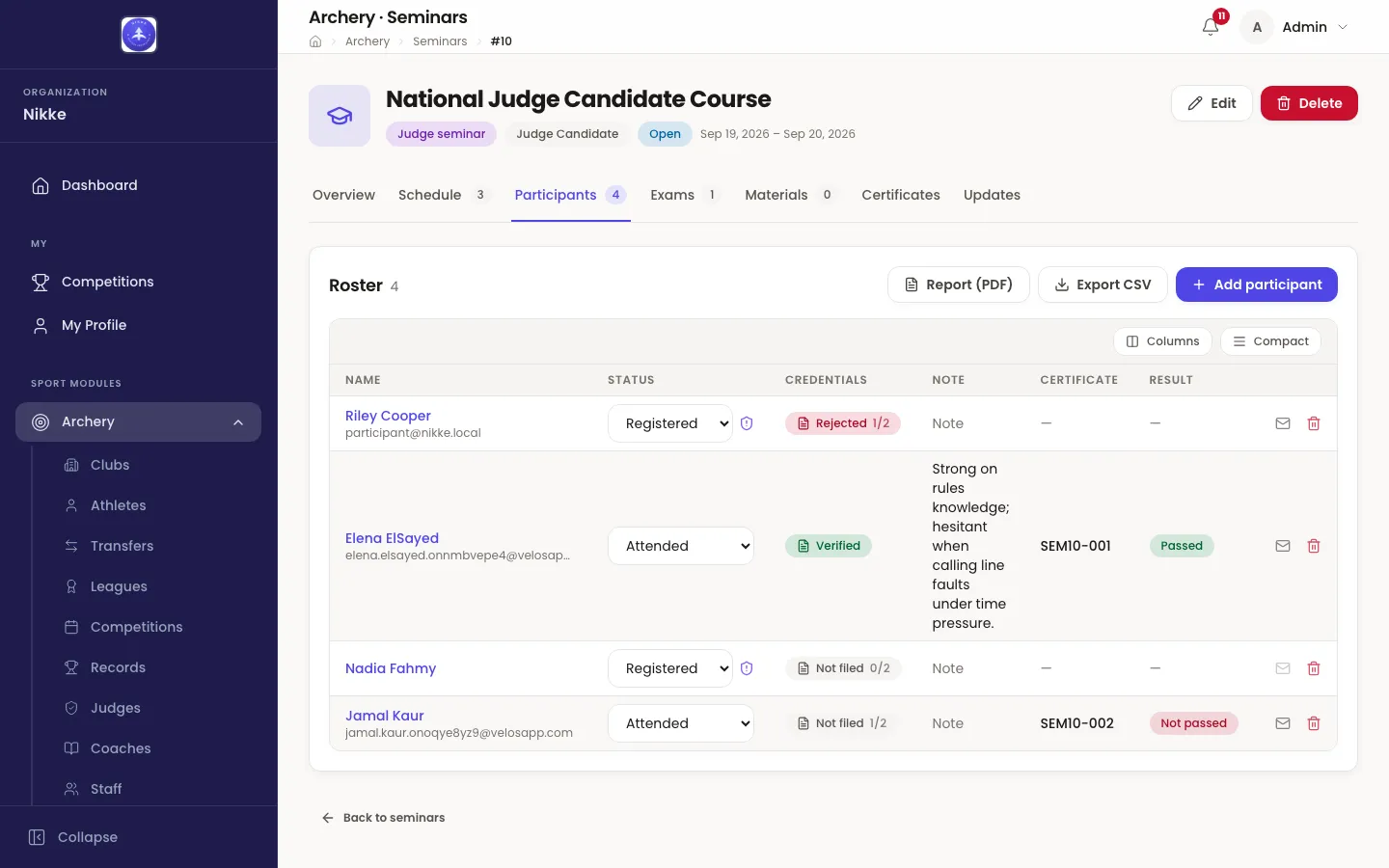
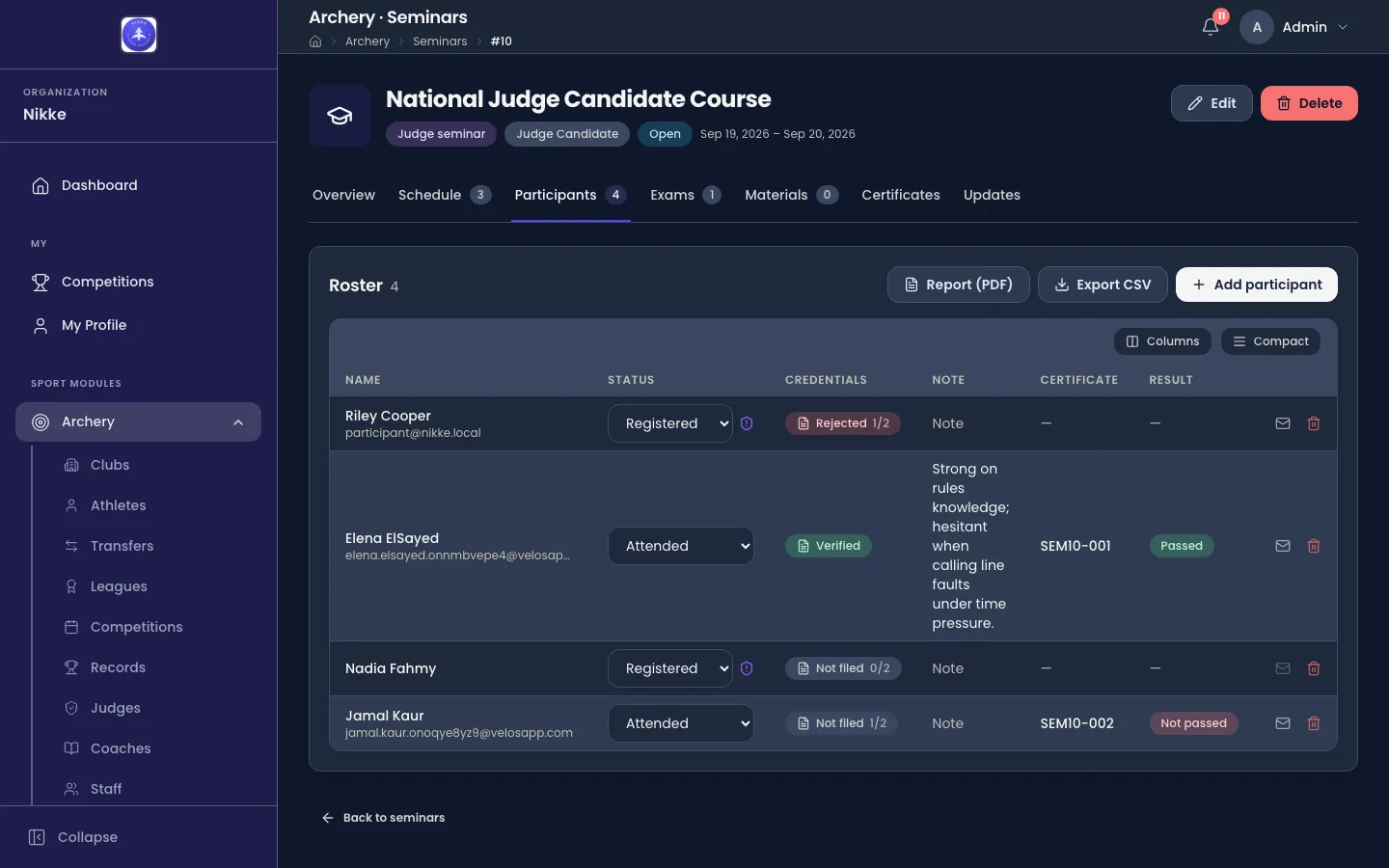
Roster is the participants. Add participant takes an Existing person found with Find a person — the list of your directory opens as soon as you click the box, and typing narrows it — or a New person created on the spot from a first name, last name, email and phone, with their gender, date of birth and nationality where you have them. Tick Send app invite email and the person receives a link that connects the Velos app to you, so the seminar is waiting for them when they sign in.
Each row carries a Status dropdown — Registered, Waitlisted, Attended, No show or Withdrawn — a Note for anything internal such as payment or dietary needs (it is printed on the participant’s sheet of the report, so it is internal to your staff, not to the paper), the Certificate number once one is issued, and the exam Result. A participant’s name opens their person record. The envelope icon sends the app invite to a person who has an email address; the bin removes them from the roster, leaving their person record in your directory.
Two buttons above the roster take it off the screen. Report (PDF) prints the seminar report: first the whole roster on one table — each participant with their photo, their status, their scores and, where the seminar requires credentials, where they stand on them — and then one participant sheet per person on the roster, whatever their status, each on a page of its own: who they are, with their photo, nationality, date of birth and email; where they stand on the seminar’s credential requirements; each exam with its score and result; their total, overall result and certificate number; and the note you stored. It reports what was recorded and changes nothing. Export CSV hands the roster rows to a spreadsheet. Both wait until someone is on the roster, and both open in a new tab — if your browser blocks it, Velos says so: Your browser blocked the new tab.
Credentials on the roster
Section titled “Credentials on the roster”Where the seminar requires credentials, the roster gains a Credentials column with a chip per participant: Not filed, In review, Verified, Rejected or Expired, with a count such as 0/2 when more than one requirement is outstanding. A participant lacking a verified credential keeps their seat and can prepare, but cannot be marked Attended — the dropdown refuses with Credentials incomplete — they cannot be marked attended until every required credential is verified. — and so cannot be examined or certified until every requirement is met.
Press the chip to review.
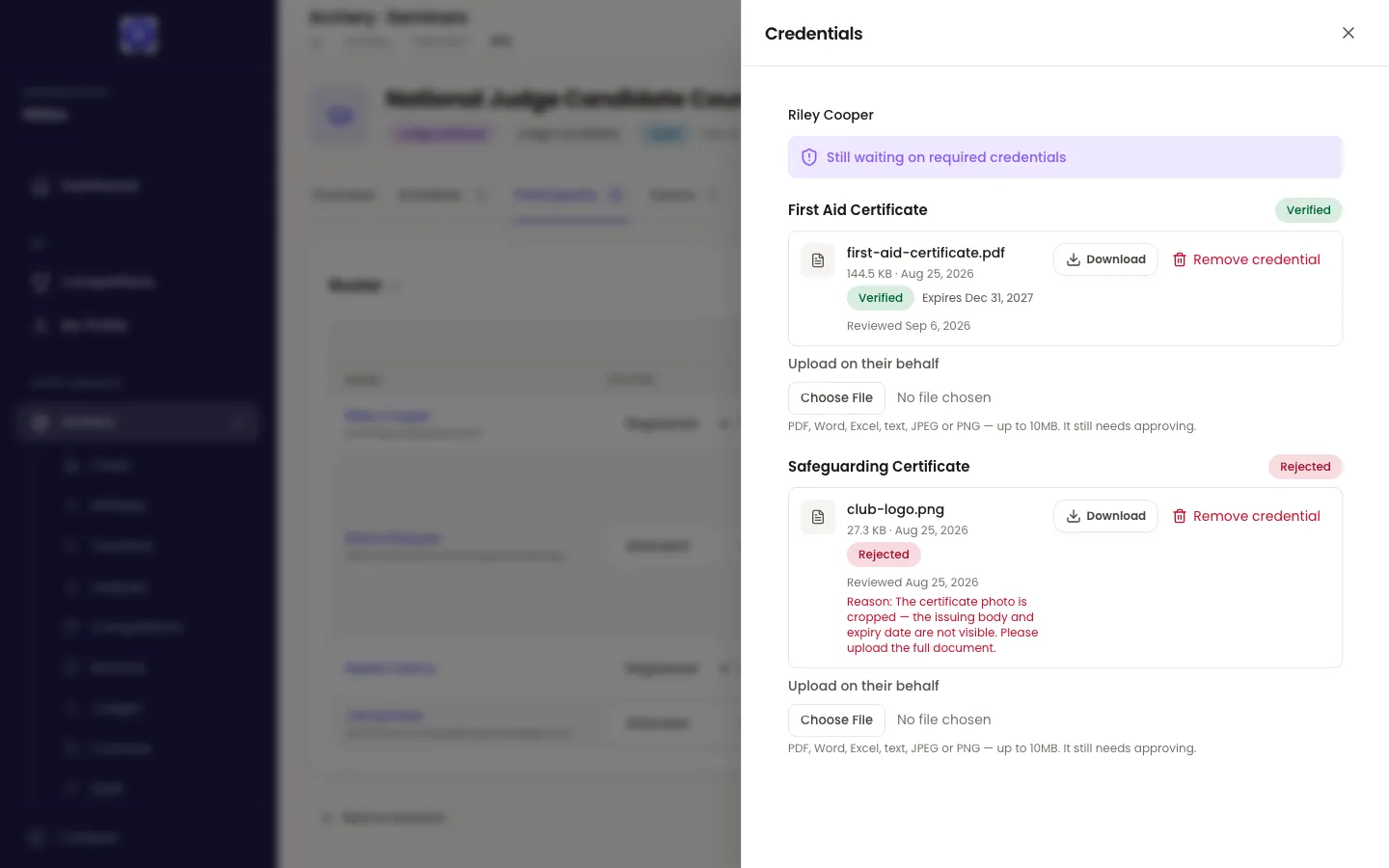
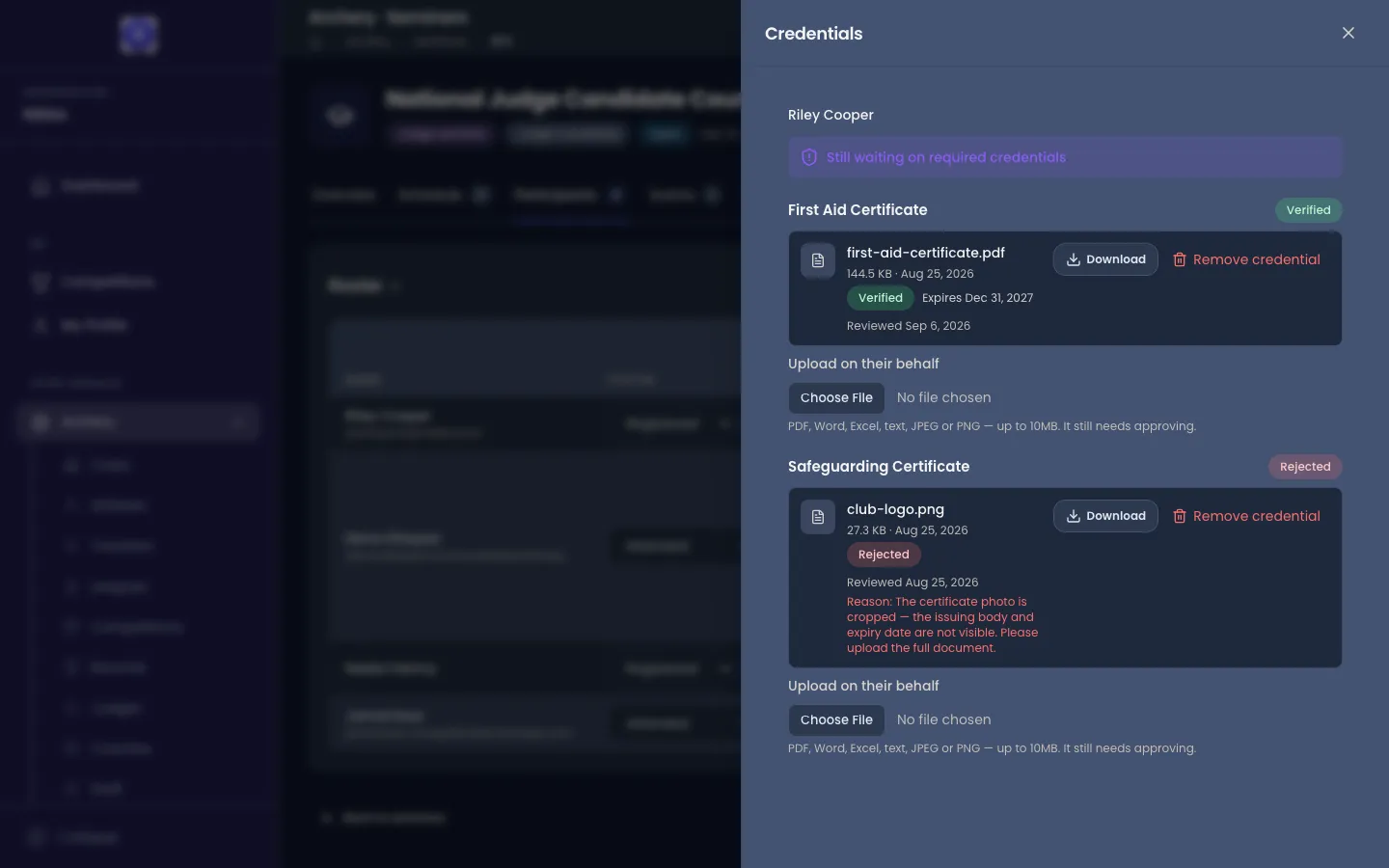
The drawer lists each required type with everything filed against it. Approve asks for an Expiry date — read it off the credential, and leave it empty if it never expires — and marks the credential Verified. Reject asks for a Reason, which the participant reads in their app together with the invitation to file again. Upload on their behalf files a credential for a participant who handed you paper; it is marked Filed by staff and still needs approving.
Remove credential deletes one outright, whatever its state — a file uploaded against the wrong person, a duplicate. It is housekeeping rather than a review decision: as the confirmation says, the credential and its stored file are deleted for good, nobody is told, and it stops counting towards this seminar’s requirements until a new one is filed. Where the participant filed it in error, Reject with a reason is the kinder path, since they read that in their app.
A credential belongs to the person, not to the seminar: one verified, unexpired credential of a type satisfies every seminar that requires that type, and a renewal filed while a verified one stands goes for review without disturbing it. Whether a participant meets a requirement is judged against the seminar’s start date — a credential that expires before the seminar runs does not cover it.
Add exam takes a name, a Max score and a Pass mark; a seminar may have several, and passing them all passes the seminar. The Scores grid takes one score per participant per exam — type them and press Save all changes, or Save column for one exam. A cleared box leaves the saved score as it was. The Result column of the roster reads Passed or Not passed from these.
Materials
Section titled “Materials”Notes and files for the participants — Add note for text, Upload file for a PDF, Word, Excel, text, JPEG or PNG up to 10 MB. Everyone on the roster sees them in the app; nobody else can reach them.
Certificates
Section titled “Certificates”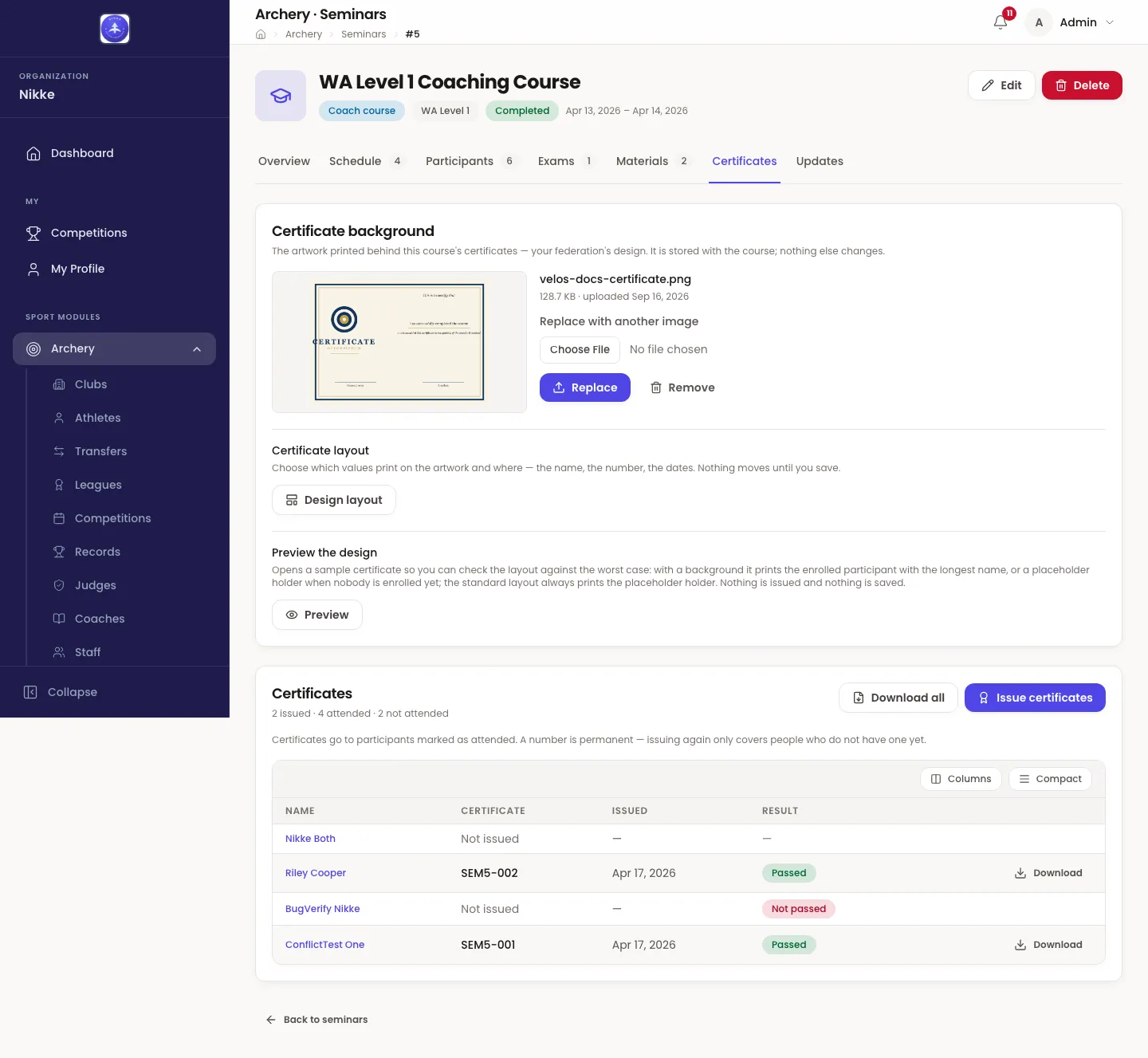
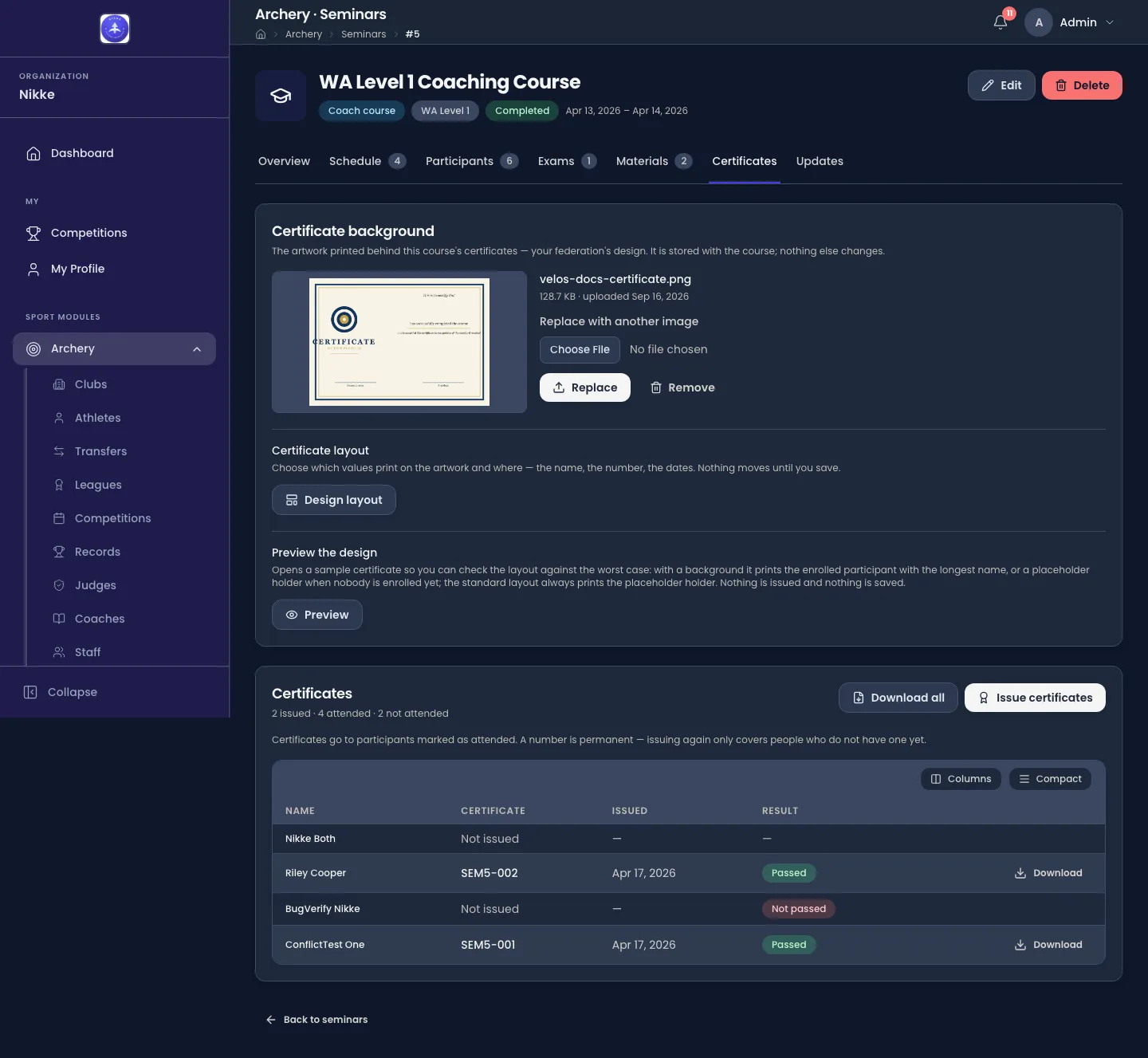
Certificate background is the artwork that becomes the full page of this seminar’s certificates, with Velos printing onto it only the participant data the seminar’s certificate layout places — the name and nationality to begin with, and whatever else you place, as the next section describes. Upload background takes a JPEG, PNG or WebP up to 10 MB; the page takes the artwork’s orientation, landscape or portrait. Replace swaps the artwork and keeps the layout; Remove takes the layout away with it. One background serves the seminar in every language, and because certificates are rendered fresh at every download, changing it — or its layout — reaches certificates already issued. Without one, certificates print on the standard layout: Velos’s own typeset page, with the participant’s name, the course, its dates and location, and who issued it.
Preview opens a sample certificate in a Certificate preview window — English, with a Download button — so you can check the layout against the worst case. With a background it prints the enrolled participant with the longest name, or a placeholder holder when nobody is enrolled yet; the standard layout always prints the placeholder holder. Nothing is issued and nothing is saved.
Anyone who can read seminars sees the background and can open the preview; uploading, replacing and removing it, and designing its layout, take the right to manage seminars.
Certificates issues them. Issue certificates covers every participant marked Attended who does not yet hold one; a number, once given, is permanent, so issuing again only reaches newcomers. If someone attended but has not passed every exam, Velos says so — Not everyone has passed — and asks before it goes ahead with Issue anyway. Download all opens every certificate, together, in a new tab; Download on a row opens one. Mark attended on a row is a shortcut to the roster for someone who turned up but was never marked.
The certificate layout
Section titled “The certificate layout”Once a seminar has a background, the Certificates tab carries a Certificate layout section — Choose which values print on the artwork and where — the name, the number, the dates. Nothing moves until you save. — and Design layout opens the editor on its own page.
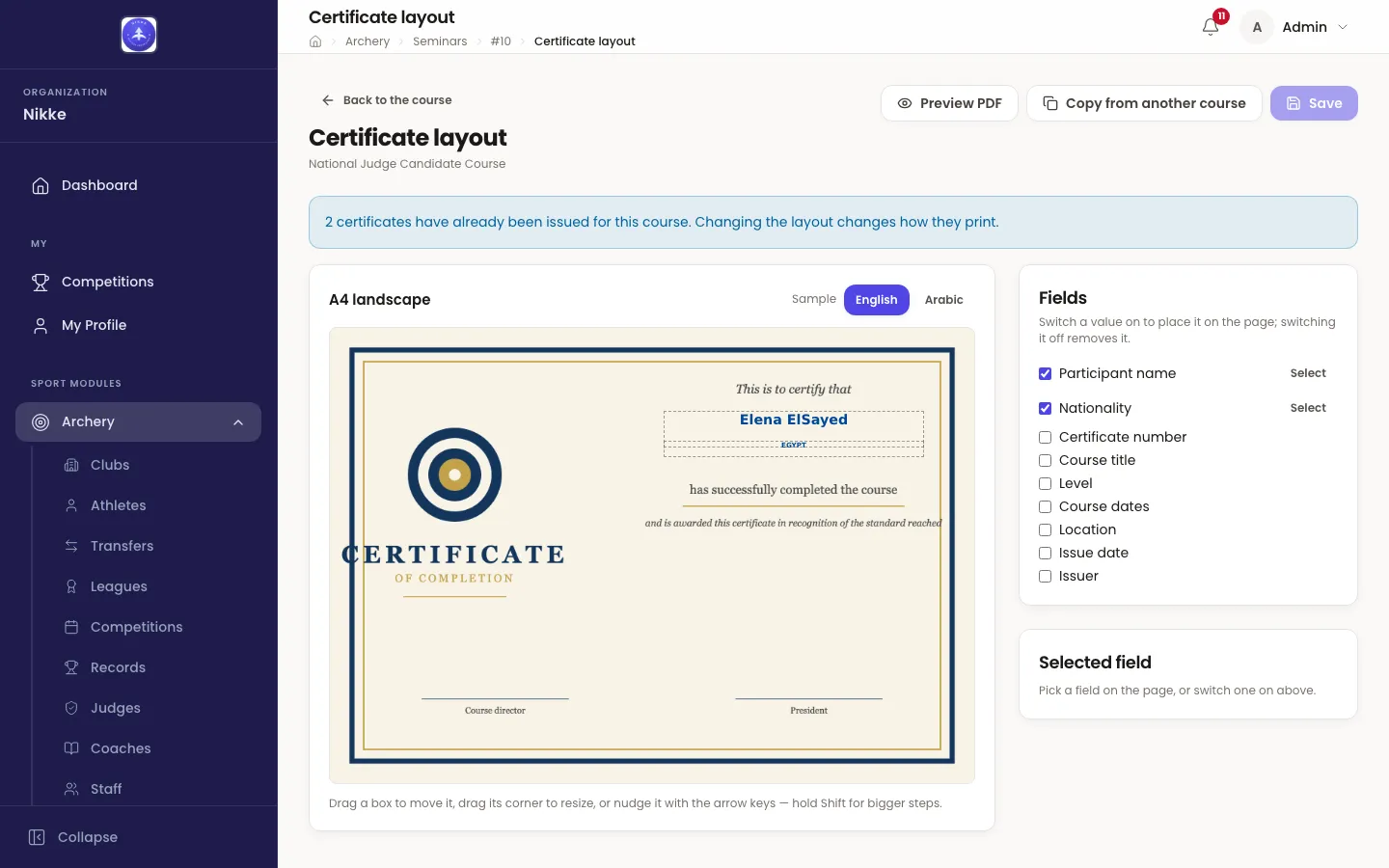
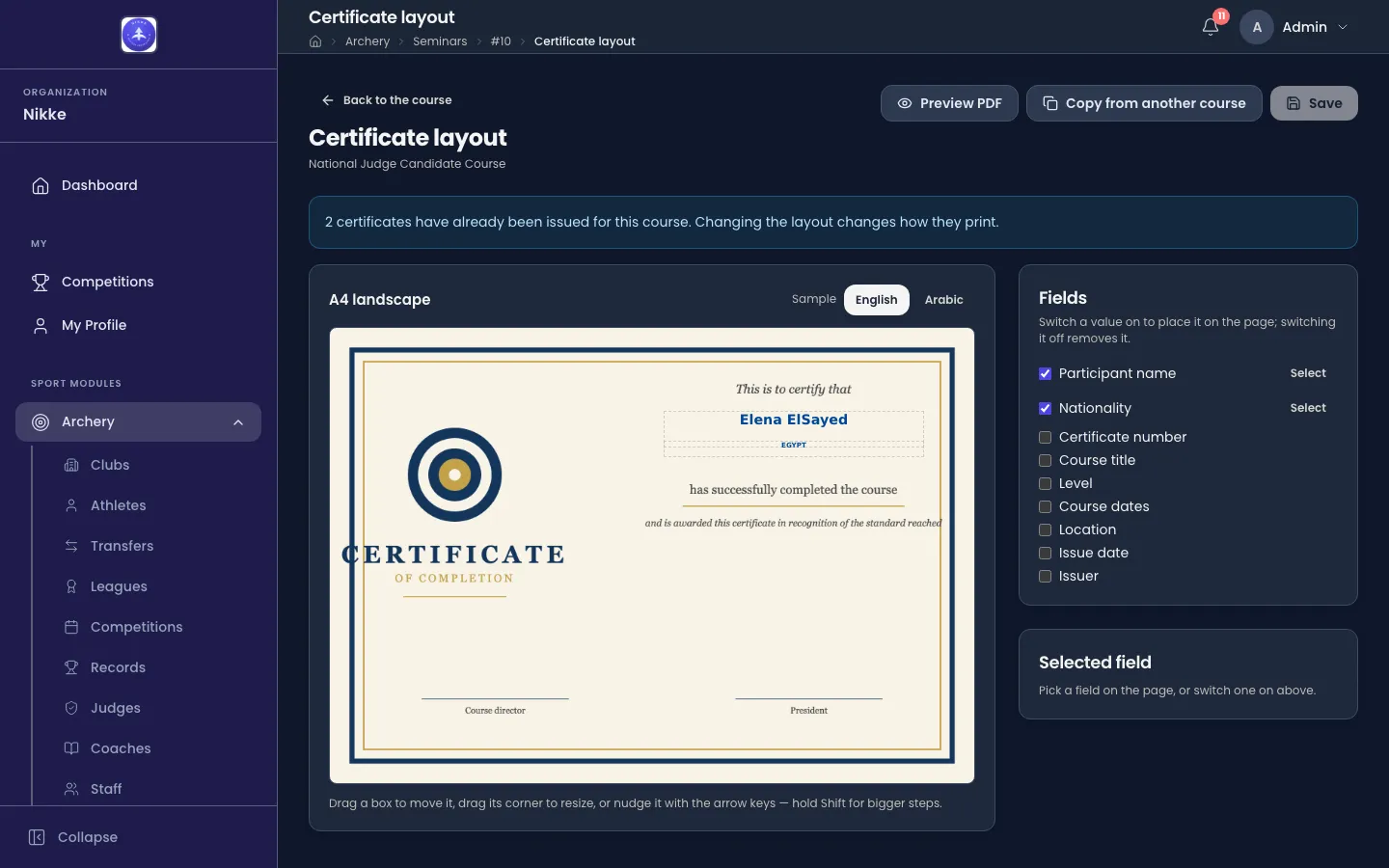
The page is the artwork drawn to A4 — A4 landscape or A4 portrait, decided by the shape of the image — and each value that prints is a placed field: a box on the page with the text inside it. A new background starts with two, the participant’s name and their nationality; a seminar may place nothing at all. What you see in the boxes is a Sample holder — the participant on the roster with the longest name, so you are designing for the worst case, with a placeholder holder standing in for any value that person lacks and for an empty roster — and the English / Arabic switch changes which language the sample is drawn in, not the app’s own.
Fields lists the nine values a certificate can carry: Participant name, Nationality, Certificate number, Course title, Level, Course dates, Location, Issue date and Issuer. Ticking one places it on the page; unticking removes it; each can be placed once. Select on a placed field, or a click on its box, opens it in Selected field: its position and size as Left, Top, Width and Height in percent of the page, its Font size in points, Alignment (Left, Centre or Right), Weight (Regular or Bold) and Colour, and Remove this field. On the page itself, drag a box to move it, drag its corner to resize it, or nudge it with the arrow keys — Shift for bigger steps. A box never leaves the page, and text never leaves its box: a value too long for it is made smaller, then wrapped, and a value the participant lacks simply prints nothing.
Nothing moves until you Save. Preview PDF renders the layout as it stands, saved or not, in the sample language, in the same Certificate preview window as the tab’s Preview. Copy from another course takes the artwork and the placed fields of another of your seminars that has a background — this seminar’s own are replaced, and Background and layout copied confirms it. Back to the course returns to the Certificates tab; with unsaved changes it asks first — Leave without saving? — and Discard changes throws them away.
Three notices earn a look when they appear. Where certificates have already been issued for the seminar, the page says how many and that Changing the layout changes how they print — because certificates are rendered fresh at every download. Where the artwork is not shaped like an A4 page, it is stretched to fit, and the page says to check the preview before relying on it. And where the background was replaced with one running the other way, the boxes now sit on a differently shaped page and each one wants checking.
Someone who can read seminars but not manage them can open the layout and preview it, and is told so — You can look at this layout and preview it, but not change it.
Updates
Section titled “Updates”Send an update writes a message to everyone still on the roster — withdrawn and no-show participants are left out — as a notification on their phone. It cannot be edited or taken back afterwards, which is why Send update confirms first. Sent updates keeps the history.
The participant’s side
Section titled “The participant’s side”A participant on the roster sees the seminar under My Seminars in Velos and in the mobile app: its schedule, materials, exam results and certificate, and — where you require them — the credentials they must file. Your own pages describes that view.
Updated for v1.63.0