
The squad cockpit
Archery → Performance opens on the Cockpit: one row per athlete, with the season’s numbers beside each name. It is built to be read at the start of a session — who is in form, who has stopped competing, who is due at an event next — rather than searched.
The board
Section titled “The board”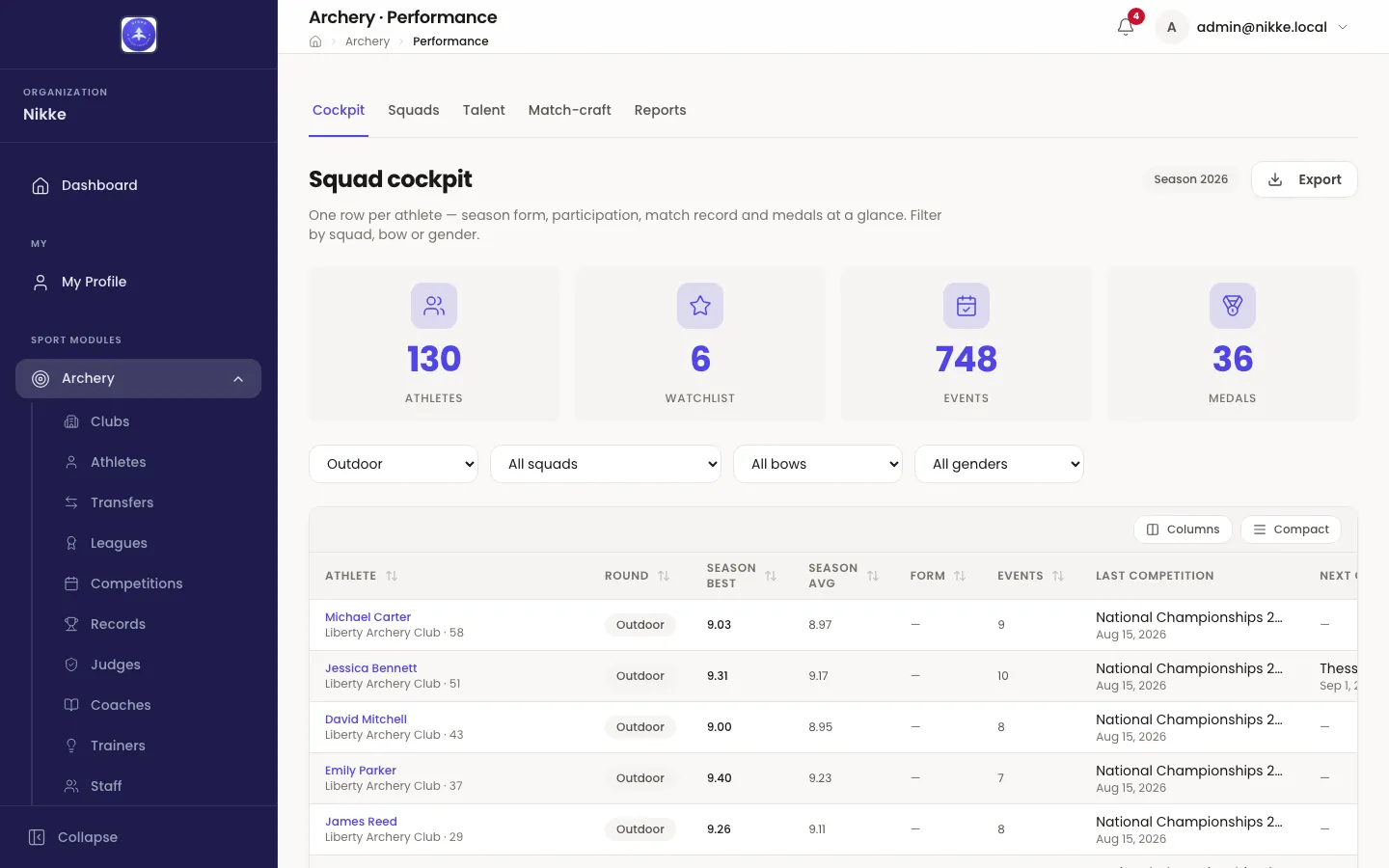
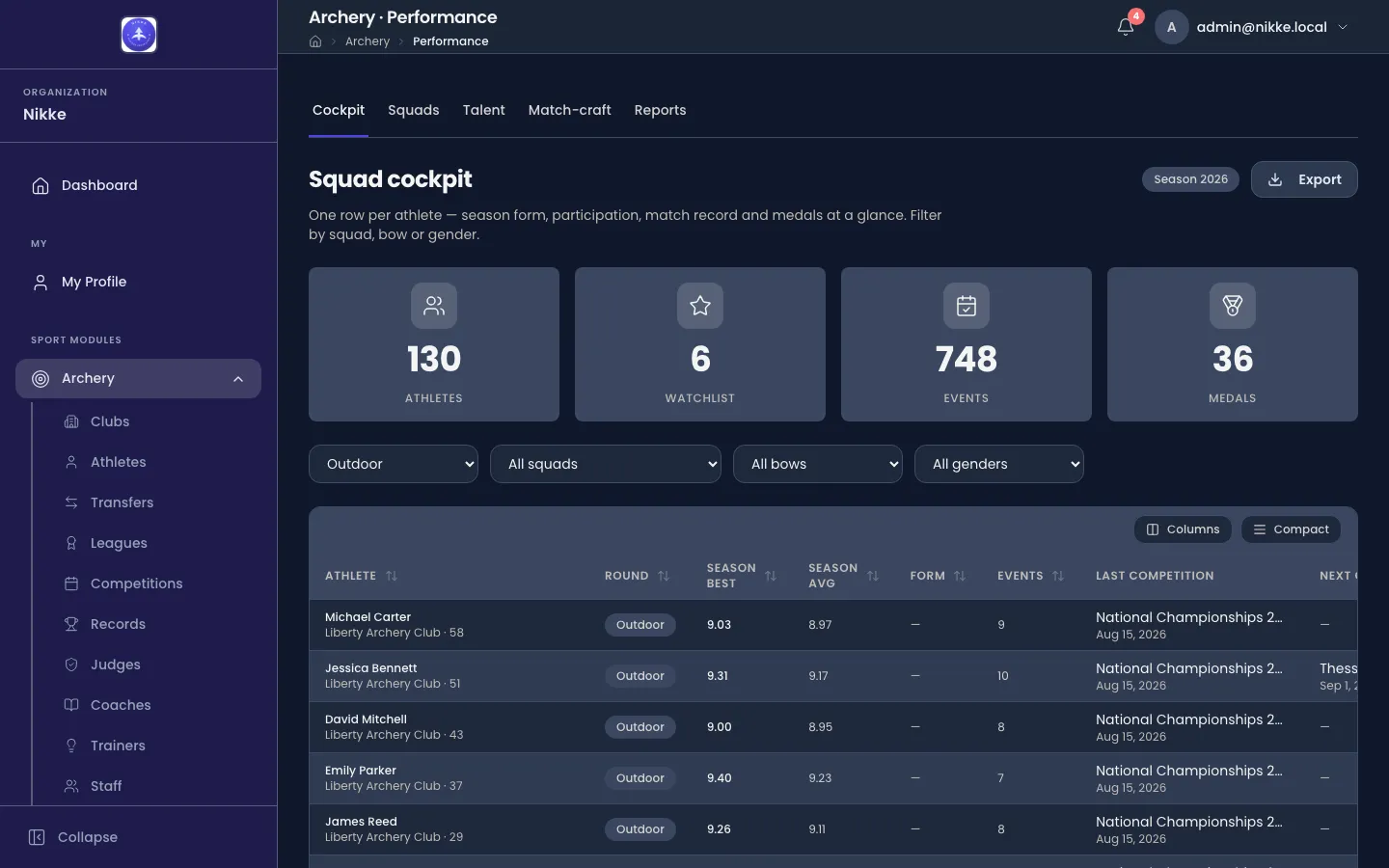
The four tiles count what is currently in view, not what the federation, club or academy has in total — change a filter and they recount.
- Athletes — how many athletes the filters leave.
- Watchlist — how many of those are flagged for attention.
- Events — competitions those athletes have taken part in.
- Medals — medals they have won between them.
The filters
Section titled “The filters”Four dropdowns, and everything above and below them obeys all four at once.
- Outdoor / Indoor is the lens. It is not a preference: an 18m indoor arrow and a 70m outdoor arrow are not comparable, so Velos never averages them together. Every score column on the board belongs to the lens you have chosen.
- All squads narrows to one squad — the grouping described below.
- All bows narrows to Recurve, Compound, Barebow, Longbow or Traditional.
- All genders narrows to Male, Female or Other.
The season is not a dropdown here. A badge beside the title names the season the board is reporting on, and it is the current one.
The columns
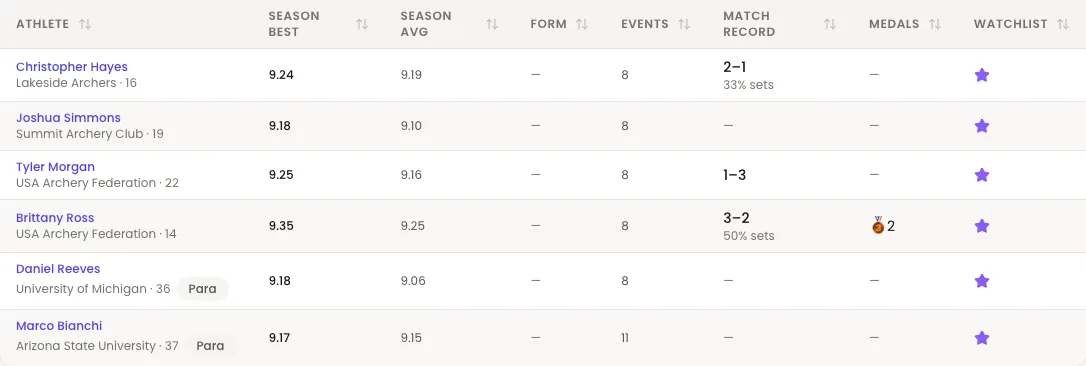
Section titled “The columns”- Athlete — the name, with their club and age under it. A Para badge appears where the athlete is classified as para.
- Round — which lens the row’s figures came from, repeated on every row so a filtered board cannot be misread.
- Season best and Season avg — the best and the average per-arrow score of the season, in the current lens.
- Form — the twelve-month trend, drawn as a small arrow and a points-per-year figure. It reads — until an athlete has enough results in the current lens to fit a trend through, which is the honest answer rather than a flat line.
- Events — how many competitions they have shot this season.
- Last competition and Next competition — the most recent result and the next entry they hold, each with its date.
- Match record — their elimination win–loss record, with set-win percentage under it. Explained in Match-craft and reports.
- Medals — gold, silver and bronze counts.
- Watchlist — a star where the athlete is on it.
Most column headers sort — the two competition columns are the exceptions, since they hold a name and a date rather than a figure. Columns hides the ones you do not want; Compact tightens the rows so more of them fit. The board is wider than most screens, so the last columns sit off to the right until you scroll sideways or hide a few.
Export at the top right downloads what is on screen. It offers the same three exports as the Reports tab, already filtered to the board you are looking at.
The watchlist
Section titled “The watchlist”The Watchlist column is a flag, not a score. It marks the athletes you have decided to keep an eye on — a returning injury, a sudden rise, a selection question — and it survives every filter, so the tile always tells you how many of the athletes in view are flagged.
Watchlisted athletes also form a squad of their own, so All squads → Watchlist narrows the whole board to exactly them. Flagging and unflagging is done from the Talent view.
Squads
Section titled “Squads”A squad is a named list of athletes. It is what the cockpit’s squad filter selects, and it is the unit the rest of the suite reports on. Squads live on the Squads tab, which counts Squads, Active, Athletes and Coaches across all of them, and lists each one with its Type, Bow, Members, Coaches and whether it is Active.
Every squad has a type: National, Development, Watchlist or Custom. The type is a label for how the squad is used, not a rule about who may be in it — an athlete can be in more than one squad at a time.
New squad creates one. An inactive squad stays in the list but drops out of the cockpit’s squad selector, which is how a squad from a finished cycle is kept without cluttering the filter.
Opening a squad shows what it holds.
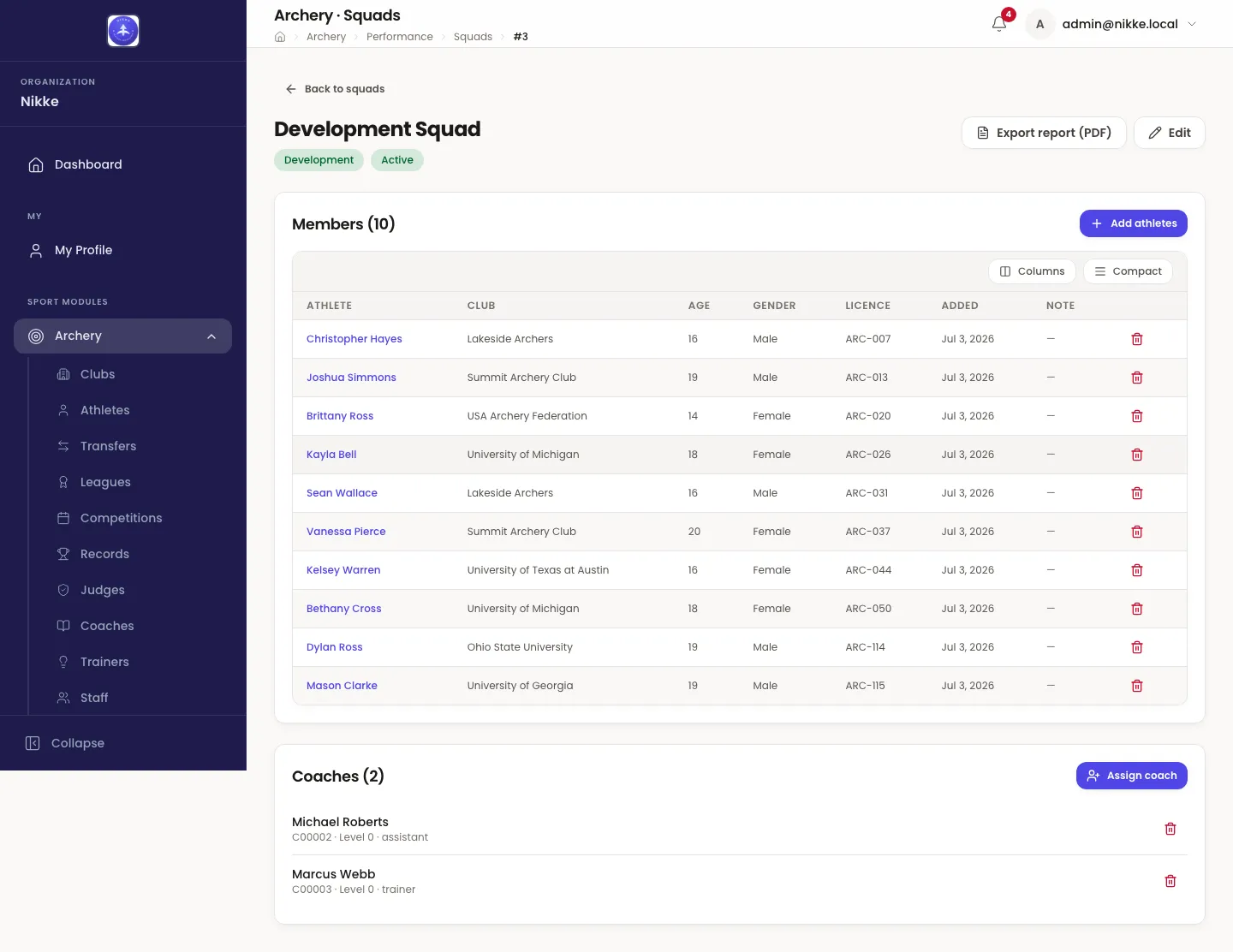
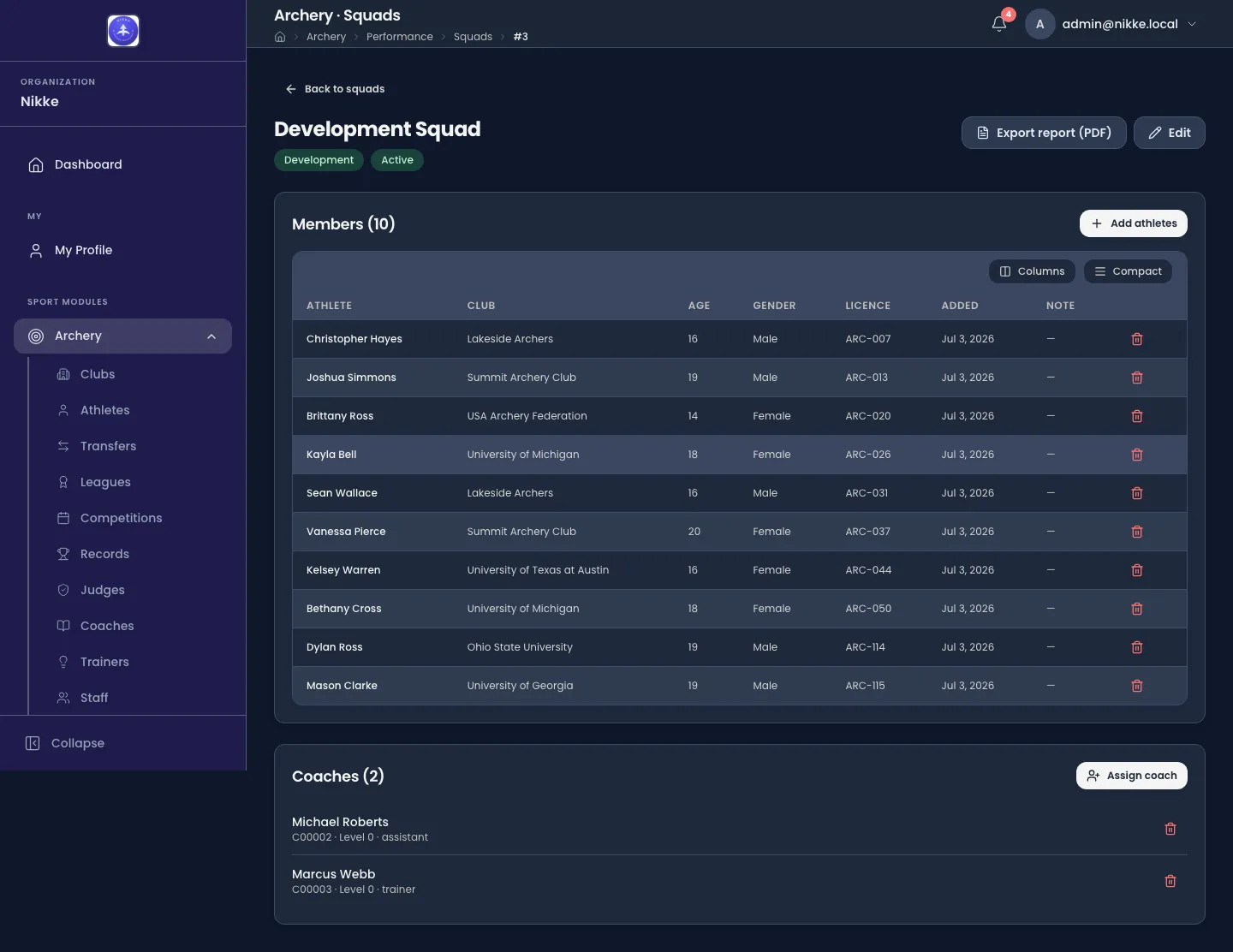
- Members — the athletes, with the club, age, gender and licence Velos already holds for them, the date each was added, and an optional note. Add athletes opens a searchable picker; the remove control on a row takes an athlete out of the squad and nothing else — it never touches the athlete record.
- Coaches — the coaches attached to the squad, with the code, level and role from their own record. Assign coach adds one.
- Export report (PDF) produces a squad report you can take into a meeting.
The cockpit tells you which athletes to look at. Athlete analysis is what you do once you have picked one.
Updated for v1.63.0