
Setting up a competition
Setting up is everything that happens while a competition is still a draft: what it is, when it is, who may enter and by when, and how the field is divided on the day. Get this right and the rest of the event is mostly typing scores.
Create the competition
Section titled “Create the competition”Archery → Competitions → Add Competition opens a four-step form. Nothing is saved until the last step, and you can go back and forth freely.
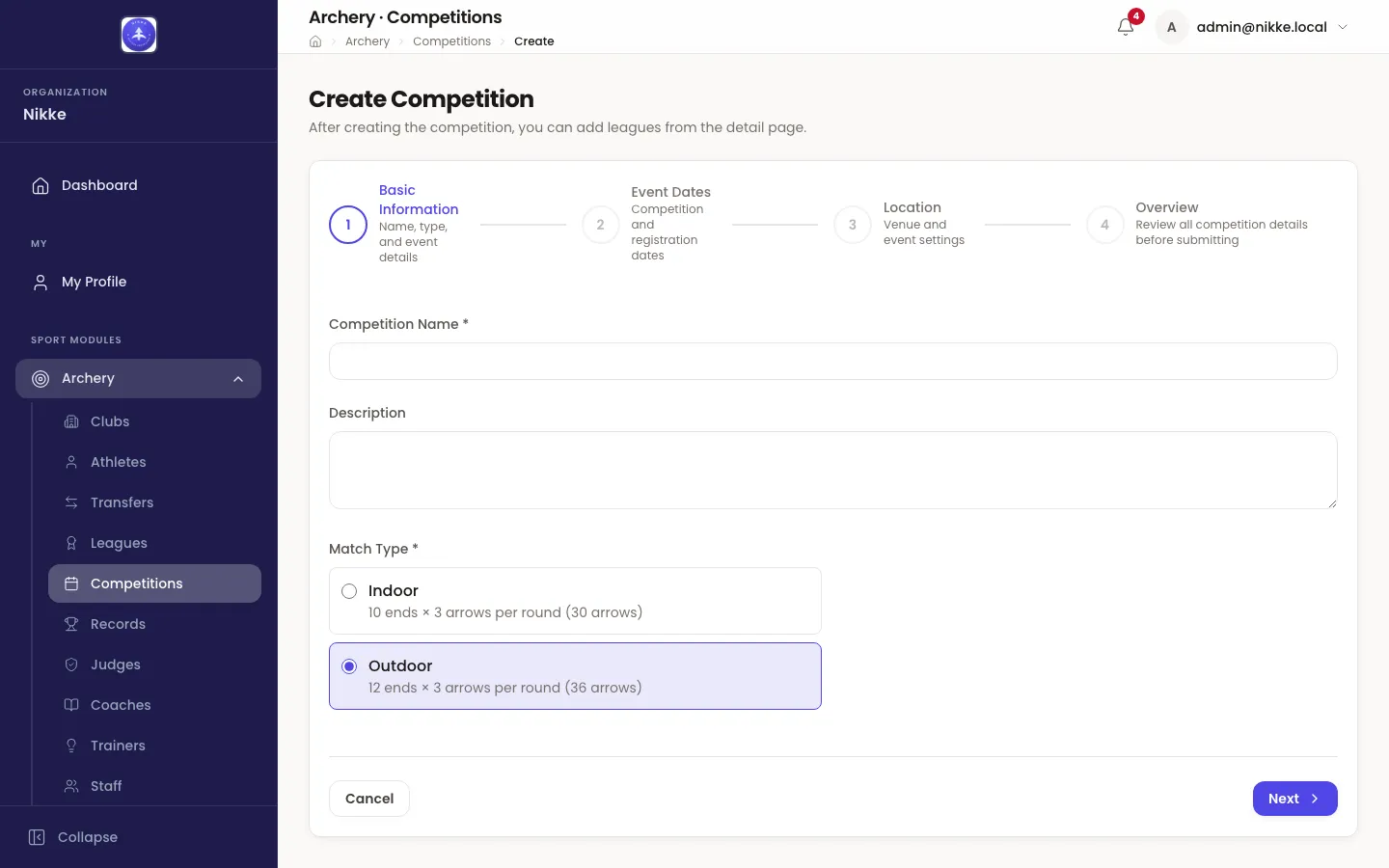
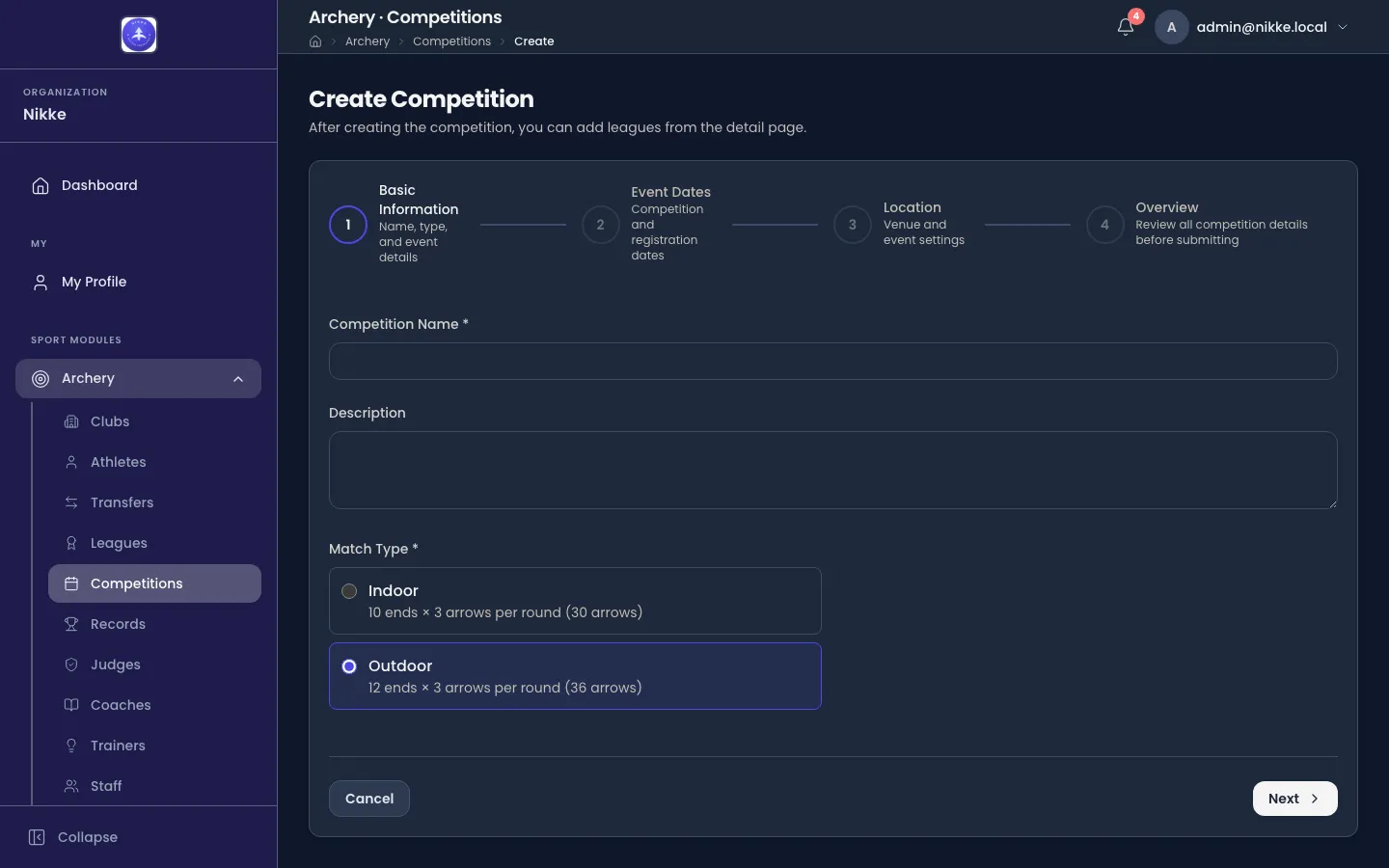
- Basic Information — the name, an optional description, and the Match Type. Match type is the one choice here you cannot shrug at: Indoor means 10 ends of 3 arrows per round, Outdoor means 12 ends of 3 arrows per round, and it decides the shape of every scorecard in the competition.
- Event Dates — the Start Date, an optional End Date (leave it empty for a
single-day event), and the registration window described below. Every date here is typed
as
dd/mm/yyyyor picked from the calendar behind the field, which also offers Today; the registration dates take a time inHH:mmas well. A date Velos cannot read shows Enter a date as dd/mm/yyyy under the field, and Next waits until it is fixed or cleared. - Location — the venue, address, city and country. Also here: whether this is an Official Event, whether it is publicly visible, and the logo printed on its documents.
- Overview — everything you entered, to check before you save.
Two settings on step 3 are worth a sentence each.
- Official Event marks the competition as one whose results count toward records. Leave it off for club nights and practice shoots, or the record book fills up with them.
- Visibility decides whether the competition is published or kept to the people running it. A hidden competition carries a Hidden badge everywhere it appears; it works exactly the same in every other respect.
You can change all of it afterwards with Edit at the top of the competition.
The registration window
Section titled “The registration window”The registration window is the pair of dates on step 2 — Registration Opens and Registration Closes — and it decides when athletes can be entered. Outside it, the buttons that add entries are gone, and the competition shows Registration Closed.
Leave both empty and there is no window at all: entries are then whatever you add by hand, whenever you like. That is the normal setup for an event where the organizer builds the entry list from paper.
Two things to expect:
- Closing the window does not lock the entry list. While the competition is still a draft, an organizer can keep entering athletes; the window governs everyone else.
- The window is not the only thing that closes entries. Once qualification is under way, or once a league’s qualification has been finalized, entries are locked regardless of the dates. Velos says which of the two is stopping you.
Add the leagues it runs
Section titled “Add the leagues it runs”A league is the category athletes are grouped and ranked within — Recurve Men, Compound Women — and a competition has to be told which ones it runs before anybody can be entered. Some screens in Velos call them categories; it is the same thing. Open the competition, go to the Leagues tab, and + Add League for each one.
Leagues covers the rest of it: what a league is made of, the distance and target face it is shot at, who may enter which one, and the phases each league moves through once the event starts.
Divide the field on the day
Section titled “Divide the field on the day”The rest of setting up is the shooting itself: the shifts the field is divided into, and the target each archer stands at inside their own shift. That work happens on the competition’s Shifts tab, and it needs entries to divide, so it usually comes after them. Shifts and targets covers all of it.
With the competition created and its leagues on it, it is ready for people. Entries covers getting them in.
Updated for v1.63.0