
Recording a session
Recording a session is two screens: a short form that fixes what is being shot, and a live screen that takes the ends. The live screen works the same whether you are scoring at the line or typing a paper scorecard up afterwards.
Setting the session up
Section titled “Setting the session up”From Archery → Training, press Start Session.
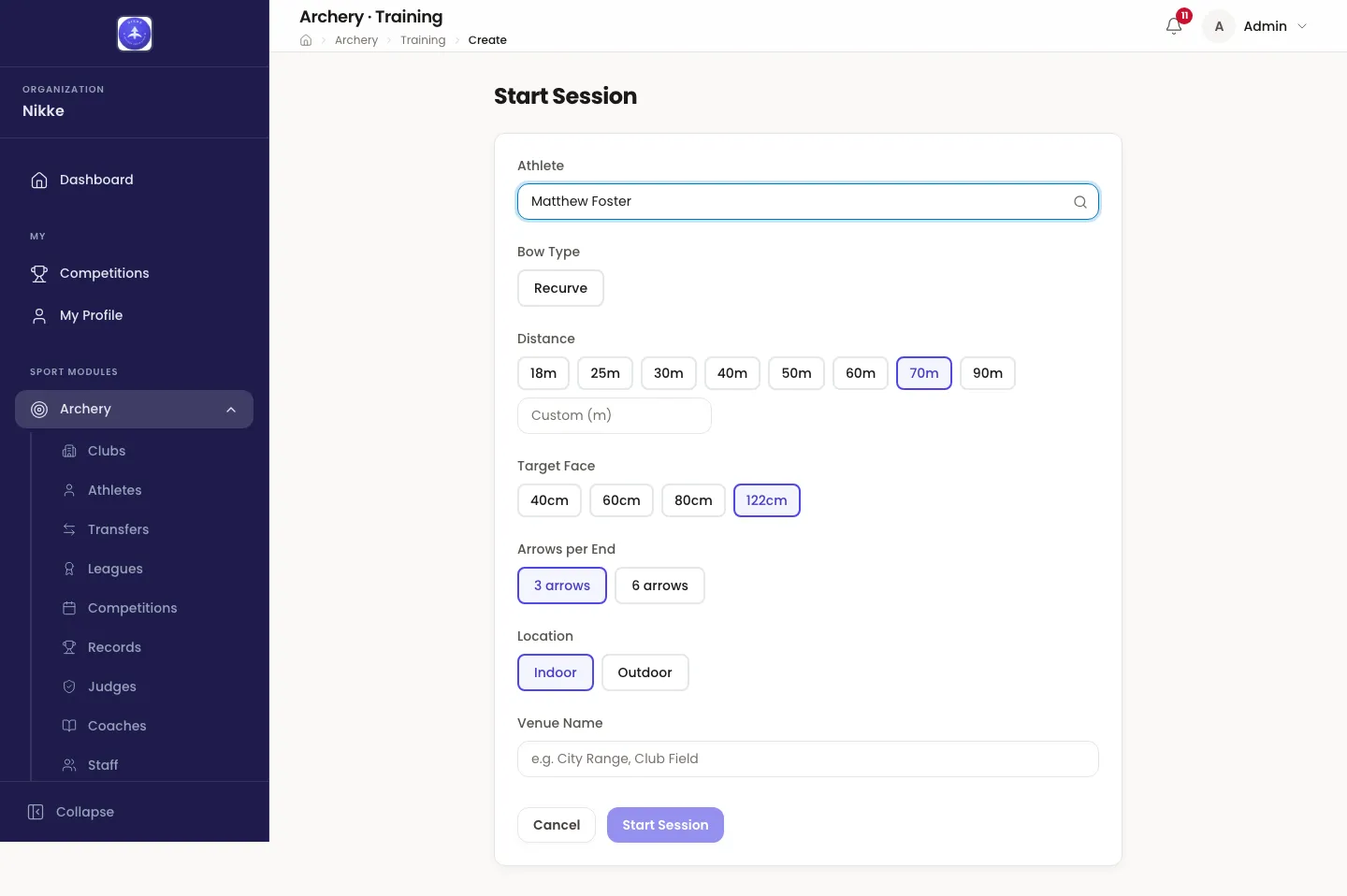
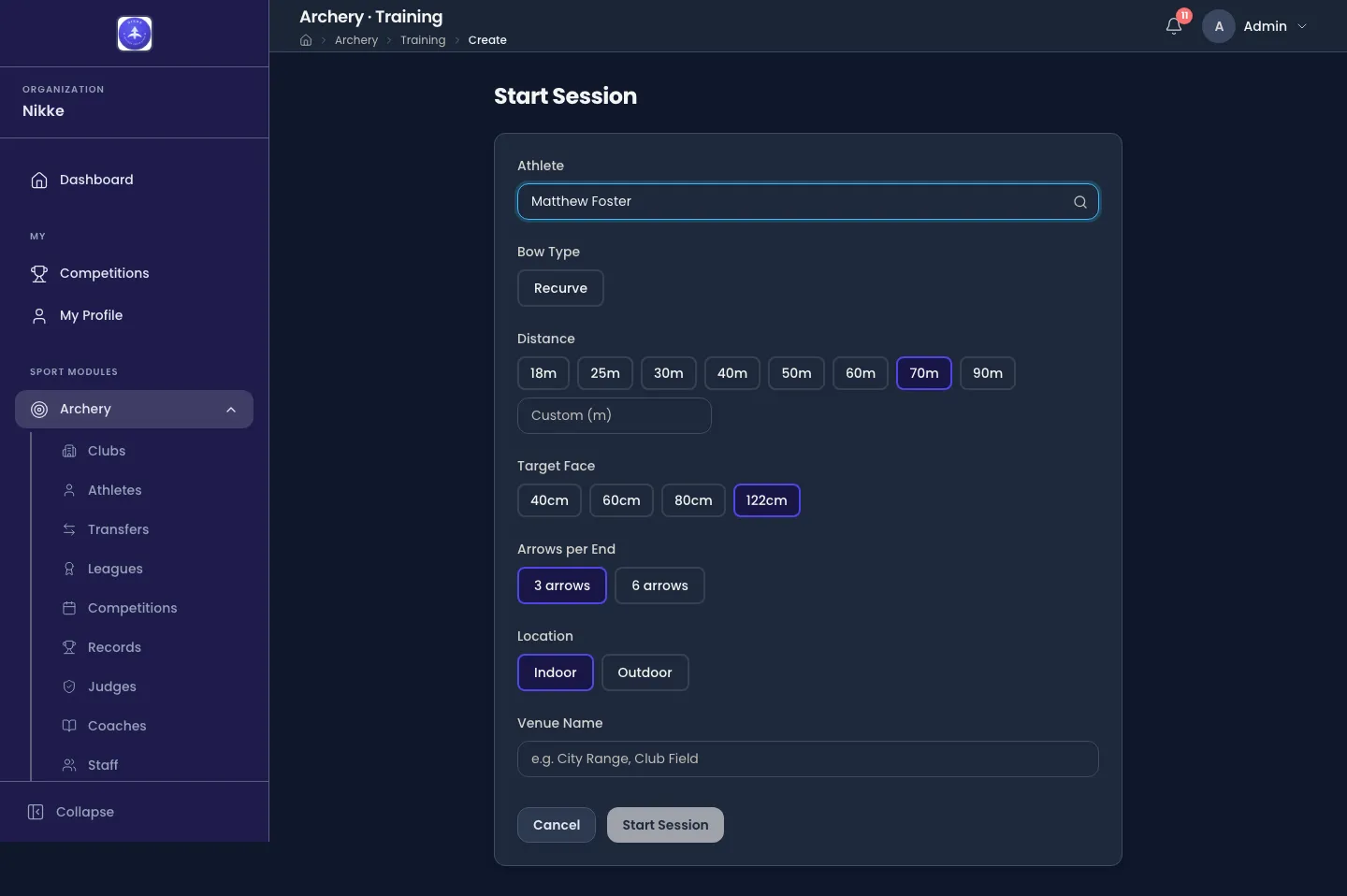
- Athlete comes first, and everything else waits on it. The box is a search: click it and the list opens, type a name or a licence to narrow it, and pick the archer. Bow Type then offers only the bows that athlete is registered on, so a session cannot be filed against a bow they do not shoot. An athlete with none registered says so instead of offering a guess.
- Distance is a chip per common distance, from 18m to 90m. For anything else, type it into Custom (m).
- Target Face is 40cm, 60cm, 80cm or 122cm.
- Arrows per End is 3 arrows or 6 arrows. It fixes the shape of every end in the session, so it is worth getting right before you start.
- Location is Indoor or Outdoor. Outdoor is what makes conditions relevant, where weather capture is switched on.
- Venue Name is free text — the range, the field, the club ground.
Start Session creates the session and takes you straight to the live screen. Only the athlete has to be chosen; everything else already has a sensible default.
Scoring it
Section titled “Scoring it”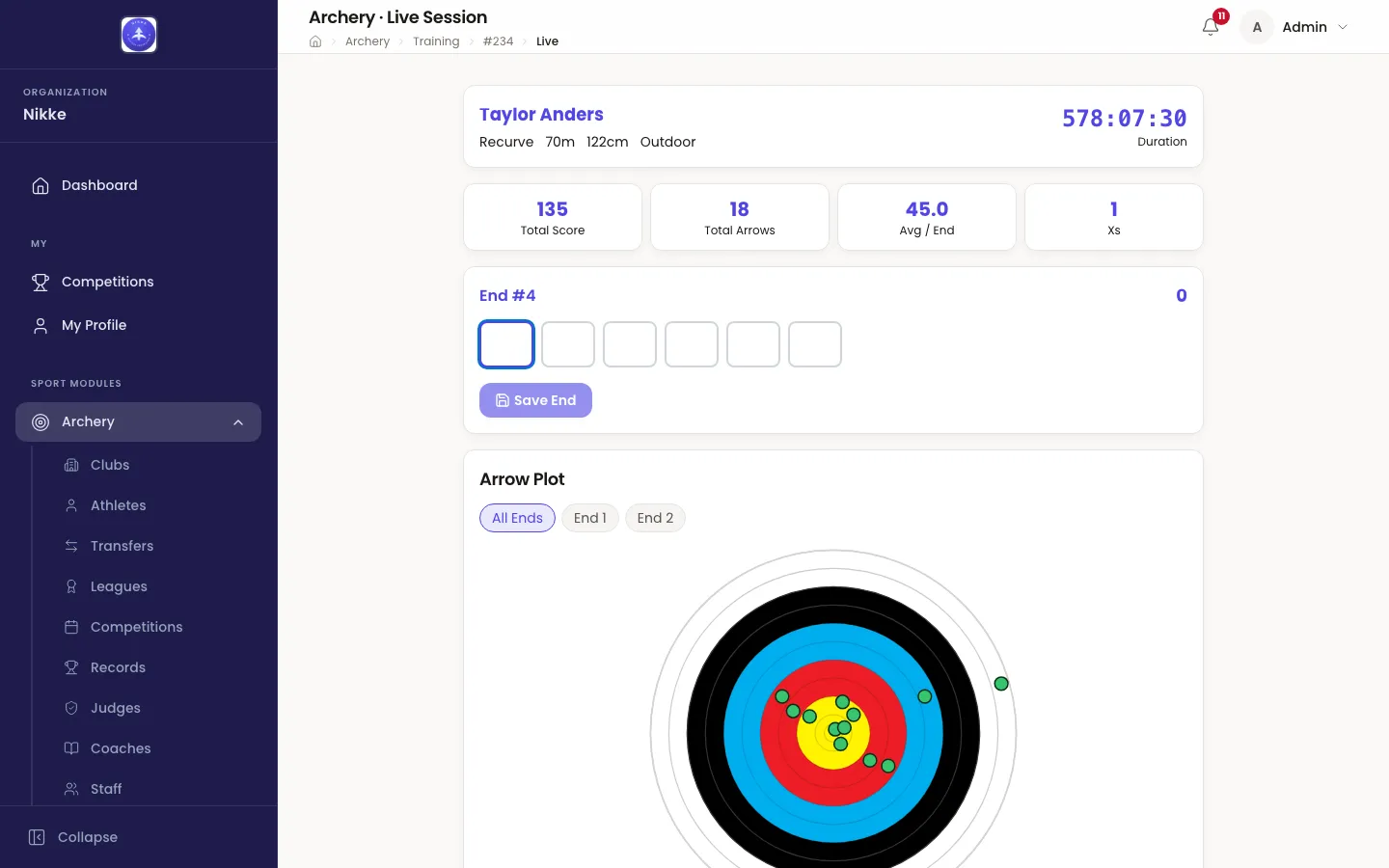
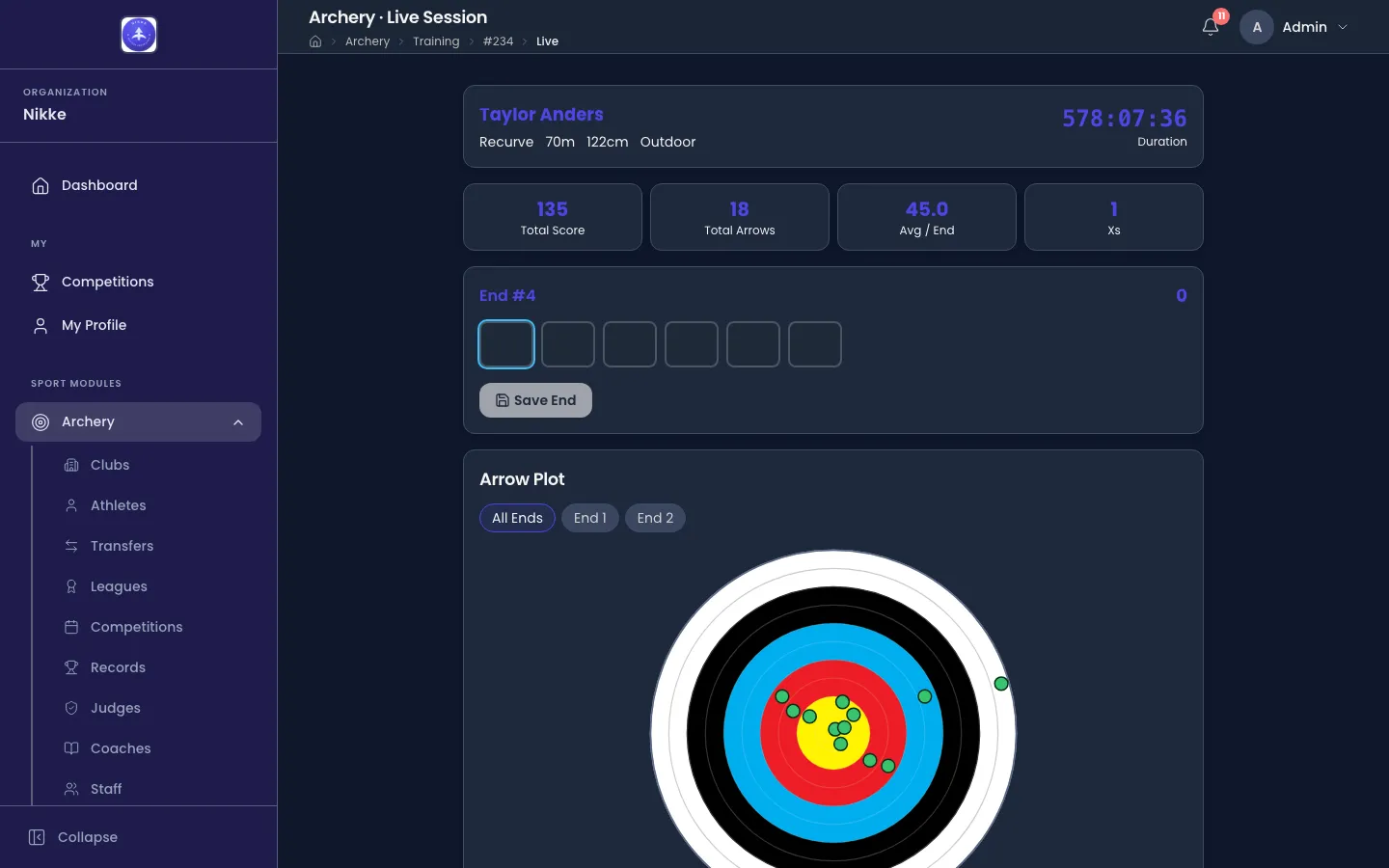
The header is the session’s setup, and the clock beside it is how long the session has been open.
End #4 — or whichever end is next — is where the arrows go. There is one box per arrow, as many as the Arrows per End you chose:
- Type the score. The focus jumps to the next box on its own, so an end is six keystrokes rather than six clicks.
- Press X for an X, and M for a miss.
- The end’s own total is shown to the right of the heading as you fill it in.
- Save End commits it. It stays disabled until every box in the end has a value, so a half-entered end cannot be saved by accident.
Saved ends collect underneath in End History, each with the arrows that made it, its end total and the running total after it. Each row carries its own controls to correct or remove that end — a misheard call is fixed on the row it went into, not by abandoning the session.
Finishing
Section titled “Finishing”Two ways to end a session, and Velos asks you to confirm either.
Complete Session closes it as a finished piece of shooting. No more ends can be added afterwards, and the session becomes the read-only record described in Scores and ends.
Abandon Session closes it as one that did not finish — rain, a broken bow, a session cut short. What was shot stays recorded and stays on the athlete’s history; abandoning is not deleting, and it is the honest way to close a session rather than leaving it in progress forever.
A session left neither completed nor abandoned simply stays In Progress, and reopening it from the training list drops you back on this screen where you left off.
Scores and ends covers what a finished session reports.
Updated for v1.63.0