
Settings
Settings is the one page about your federation, club or academy itself rather than about the people and events in it. It sits at the bottom of the sidebar and is only there for an account allowed to change those details — the built-in Admin role has it; most others do not (see Roles and access).
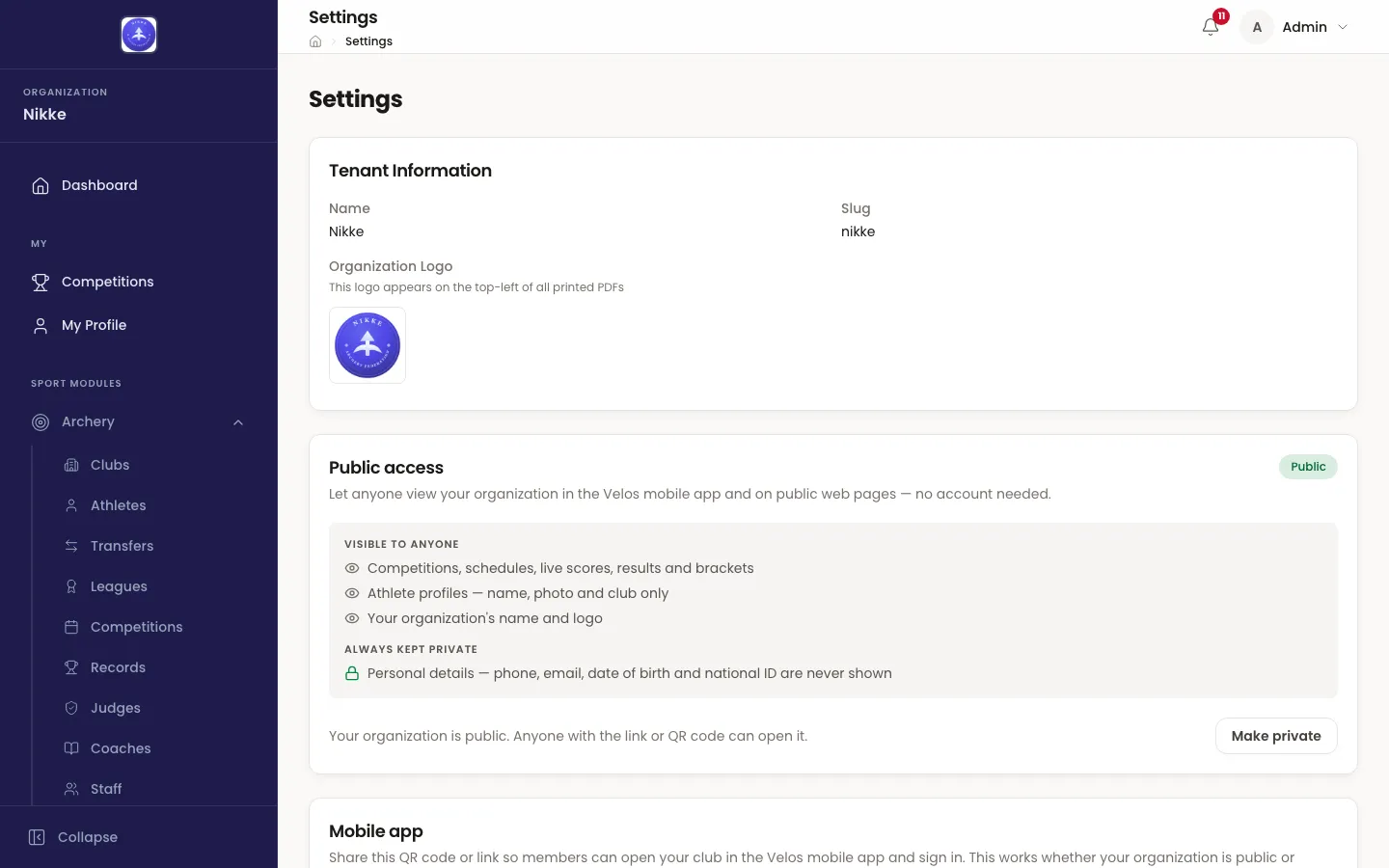
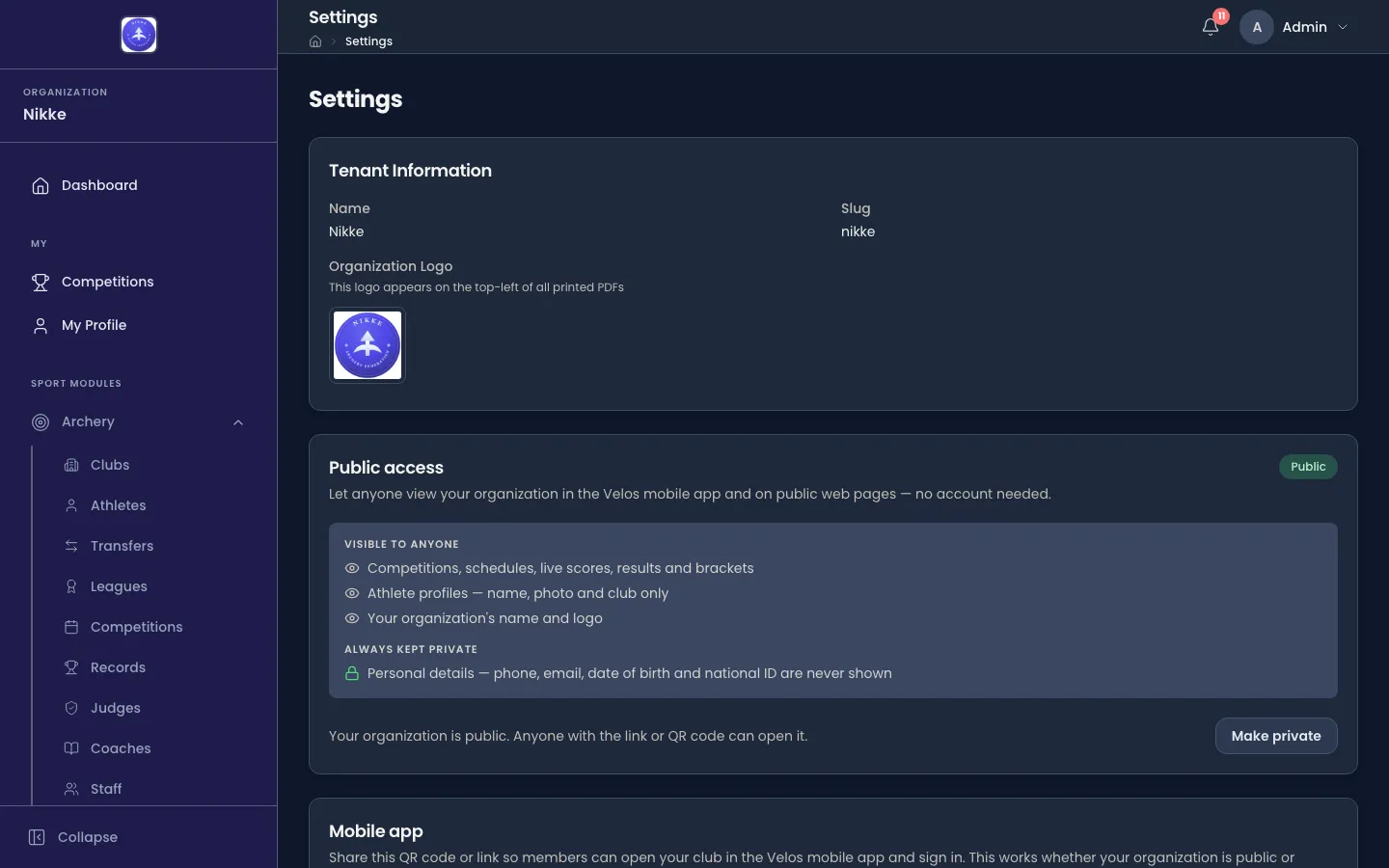
Tenant Information
Section titled “Tenant Information”Name and Slug are read back, not edited. The slug is the short handle in your web address and in the connect link below; both were fixed when Velos was set up for you, and changing either is something to ask Velos for rather than do here.
Organization Logo is the picture printed at the top-left of every PDF Velos produces — results, scorecards, target lists. Upload Logo takes a JPEG, PNG, WebP or GIF, and Delete Logo removes it. On a plan without custom branding the uploader is replaced by an Upgrade link, but a logo already in place stays printed.
Public access
Section titled “Public access”Public access is the switch that decides whether a spectator with no account may browse your federation, club or academy — its competitions, results and athletes — in the Velos mobile app and on public web pages. It governs anonymous visitors only: a member who signs in sees what their account allows, whichever way the switch is set.
The card says which state you are in with a Public or Private badge, and spells out both halves of the bargain. Visible to anyone lists what a spectator gets — competitions, schedules, live scores, results and brackets; athlete profiles, but only the name, photo and club; and your name and logo. Always kept private is the line that does not move: phone, email, date of birth and national ID are never shown to anyone outside.
Make public or Make private flips the switch, and either direction asks you to confirm first.
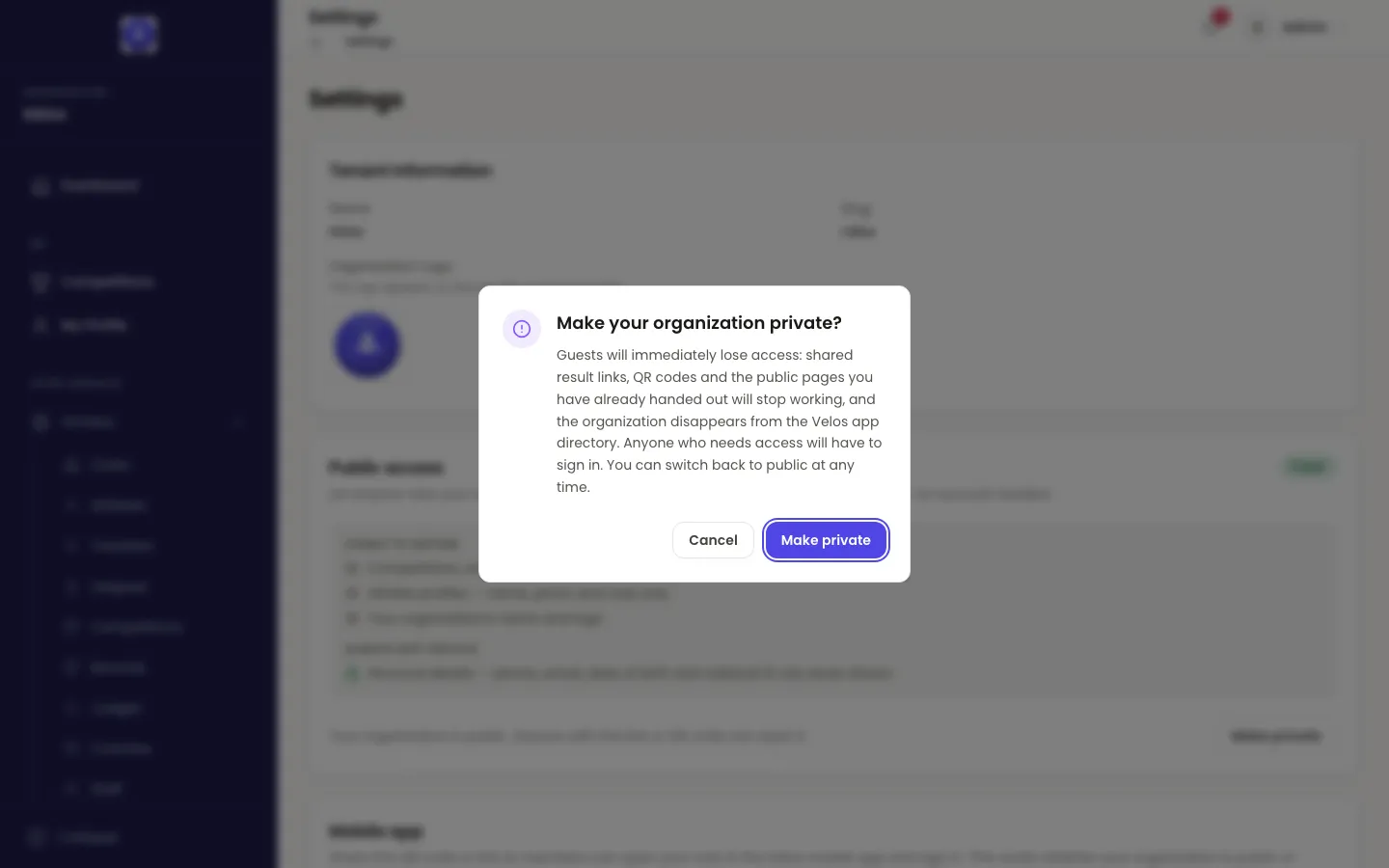
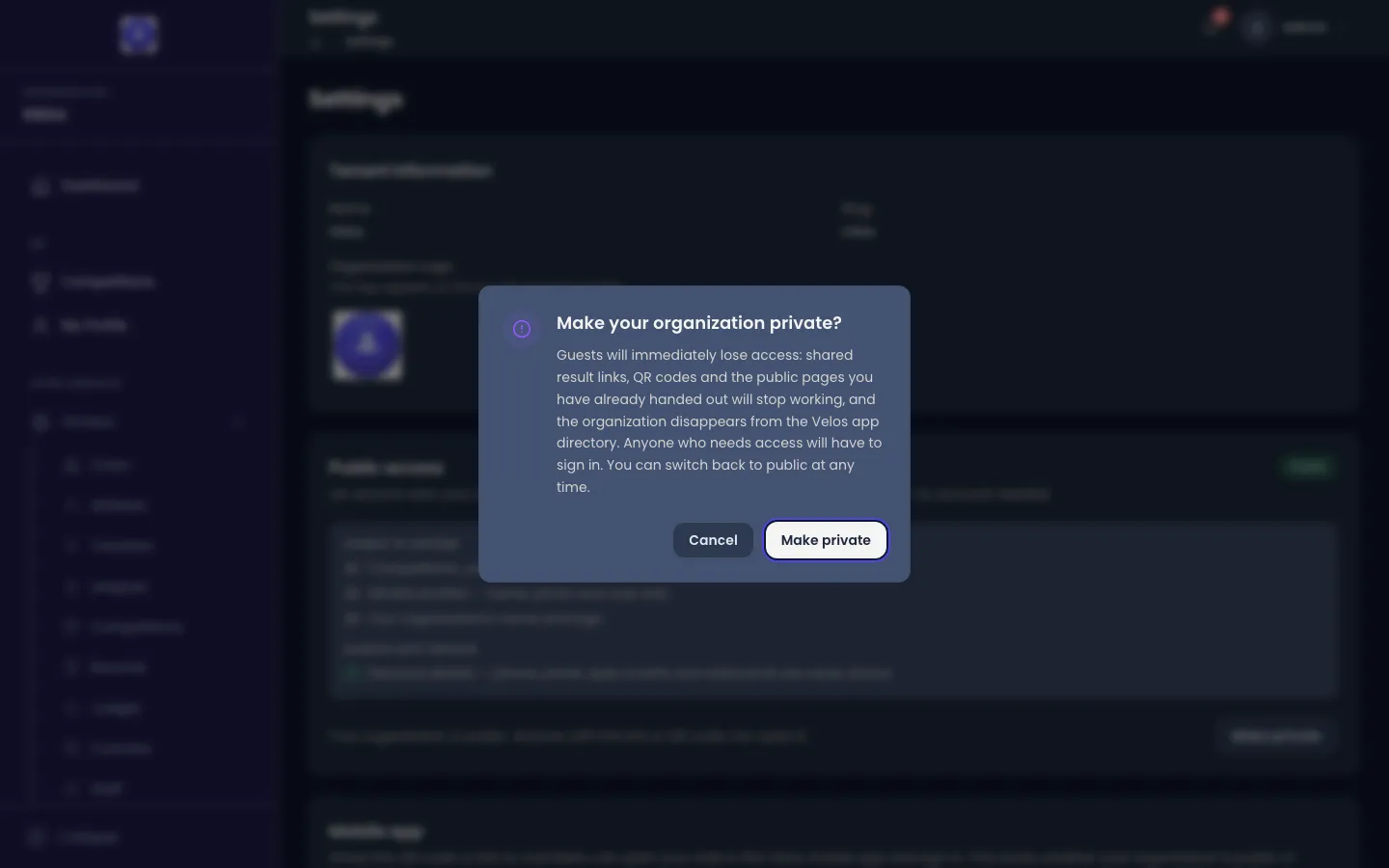
Going public warns that results and athlete profiles become visible without a sign-in, and that personal details still are not. Going private warns of the opposite: every shared result link, QR code and public page you have already handed out stops working immediately, and anyone relying on one will have to sign in instead. Both can be reversed at any time.
A competition also has a visibility of its own — public or hidden — set on the competition itself. Public access opens the door to spectators; a hidden competition stays hidden behind it either way.
Being listed in the Velos app’s public directory is a separate matter from being public. The Mobile app card below says how to ask for it.
Mobile app
Section titled “Mobile app”The Mobile app card holds your connect link — the address, also shown as a QR code, that ties the Velos mobile app to your federation, club or academy. A member who opens it, or scans it, lands in the app already connected to you and ready to sign in. Copy puts the link on the clipboard.
The connect link works whether public access is on or off: it is for your own members, not for spectators. Under it, the line Want your organization featured in the public Velos directory? Get in touch: is the way to ask for a listing in the app’s directory, which Velos grants rather than the switch above.
Appearance
Section titled “Appearance”Color mode — Light, Dark or System — is your own preference, not a setting for everyone. It is the same choice offered in your account menu, and it follows your account, not the page.
Branding
Section titled “Branding”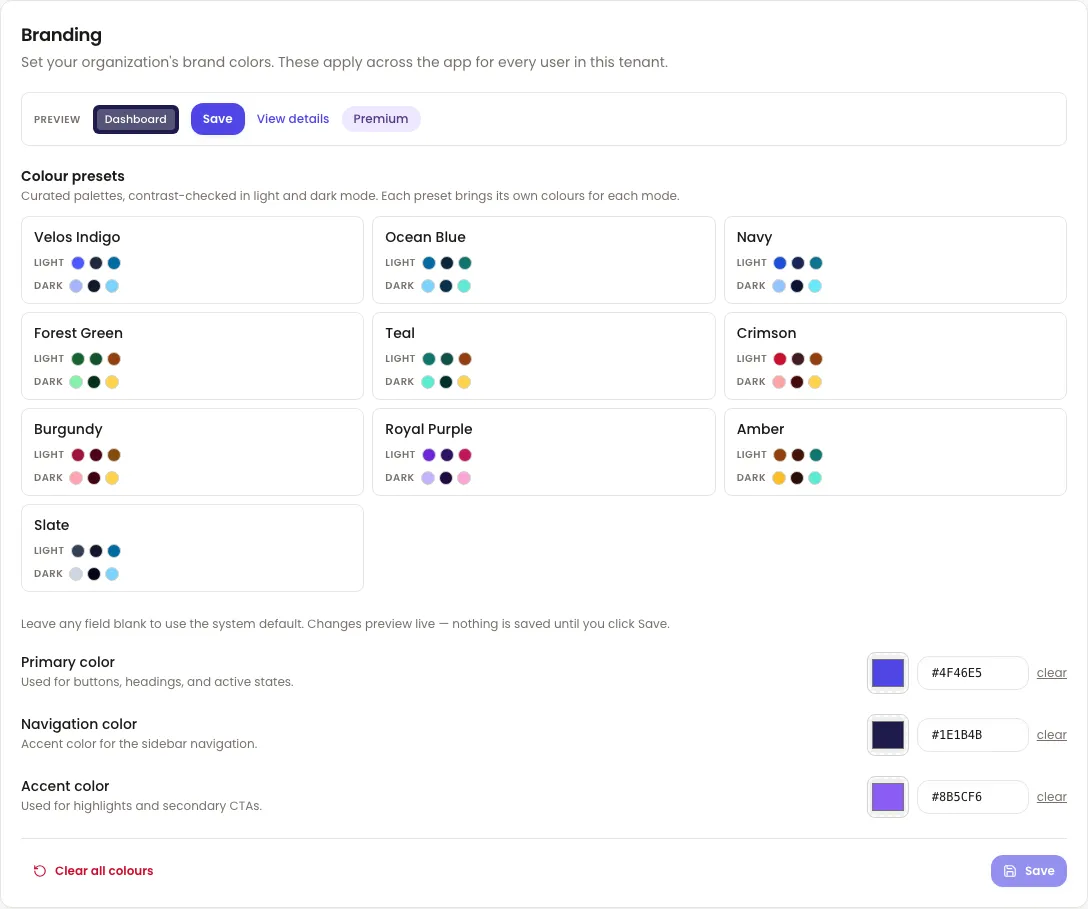
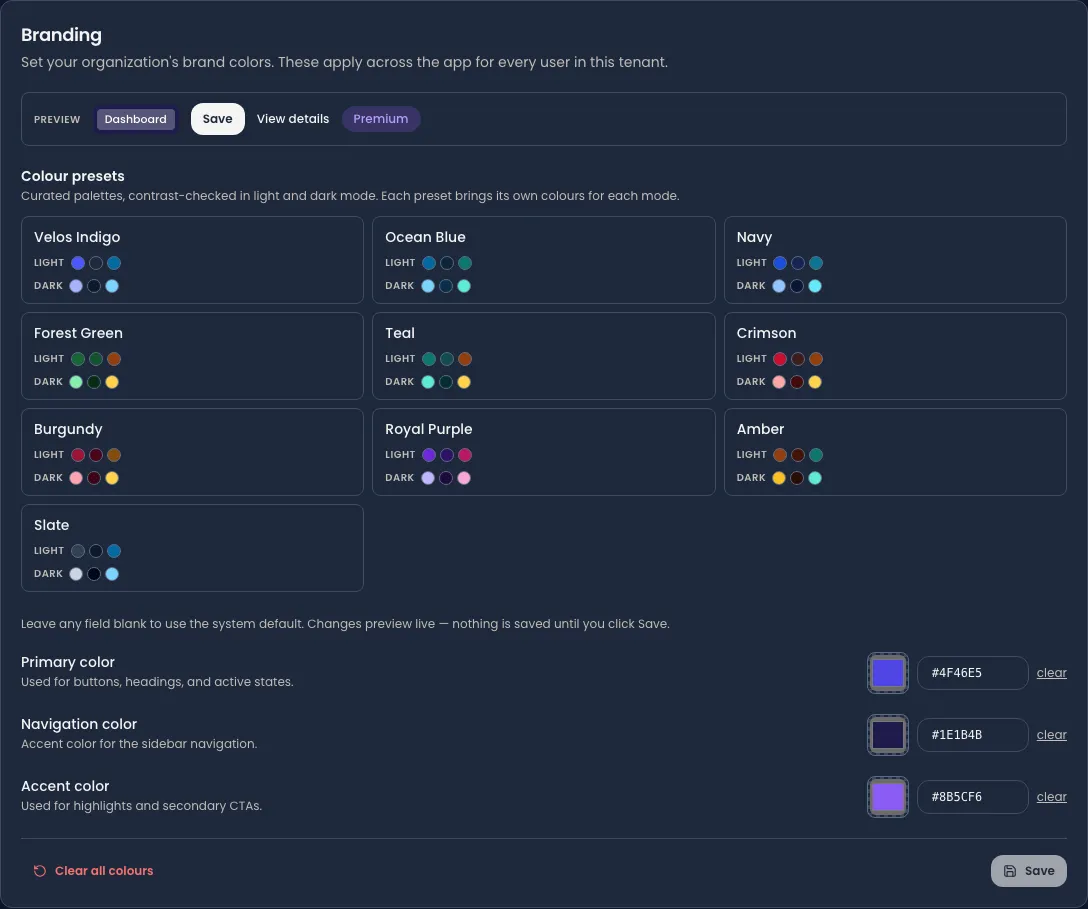
Branding sets the colours every user in your federation, club or academy sees. The Colour presets are curated palettes, each contrast-checked in light and dark mode and carrying its own colours for each. Choosing one fills the three fields below it and updates the Preview strip at once.
The three fields are Primary color, used for buttons, headings and active states; Navigation color, the accent of the sidebar; and Accent color, for highlights and secondary calls to action. Leave any of them blank to keep the standard colour. Changes preview live, but nothing is kept until you press Save; Cancel drops them, and Clear all colours removes every colour override and returns you to the standard look — after a confirmation, and without touching your logo.
Custom hex colours of your own, rather than a preset, come with a plan upgrade.
Translations
Section titled “Translations”Translations lets you reword Velos for your own people. Every label in the app is listed by language and by area, and any of them can be overridden; a field left empty keeps the standard wording. Search by key or by the words on screen, edit the ones that matter, and press Save. Reset namespace clears every override in one language and one area at once, after a confirmation. Overrides reach the web app and the mobile app alike.
Which languages appear as tabs here — and in the language picker of the account menu — is set for your federation, club or academy by Velos rather than on this page. English is always present; Greek and Arabic are switched on where they were asked for. Your own language, for your own account, is chosen from the account menu, as Finding your way around describes.
With the basics set, Your own pages is where every signed-in person starts, and Competitions is the work most people open Velos to do.
Updated for v1.63.0